Installing WebOps for Sales App extensions
Learn how to install WebOps and connect your repository to deploy Sales App extensions.
In this guide, you'll learn how to install and configure FastStore WebOps so you can deploy Sales App extensions.
VTEX Sales App Extensibility is in beta, and we're working to improve it. If you have any questions, please contact Support.
Use this guide if your project is based on the FastStore monorepo and includes the sales-app module for Sales App extensions but doesn't use the discovery module in production. In this setup, FastStore provides the monorepo structure, tooling, and build process, while the storefront uses another technology stack.
If you already have a FastStore project that uses the
discoverymodule and only need to connect it to WebOps, don't follow this guide. Instead, runnpx @vtex/fsp-cli init --from-discoveryin your project directory. Learn more in the Setting up your monorepo section of the FastStore monorepo guide.
Before you begin
Before starting, you should have the following information on hand:
- VTEX account: The name of your VTEX account (for example,
store-a). - GitHub organization: The GitHub organization where your repository lives (or where you'll create it).
- GitHub repository: An existing GitHub repository with your extension code, or you can create a new one during onboarding.
Also, note that full store onboarding in WebOps can overwrite or remove existing content in Headless CMS (legacy).
If your storefront already has relevant content in hCMS, keep this in mind before running the onboarding. If that isn't a concern (for example, if you're setting up a new project or only a
sales-appmodule with no FastStore project in hCMS), proceed with the onboarding as usual. If you can't run the WebOps onboarding because you already have a FastStore project or existing hCMS content that must not be overwritten, follow this guide, but skip step 3. If you have any questions, open a ticket with Support.
Instructions
Step 1 - Checking existing WebOps installation
- In your VTEX Admin, go to Storefront > FastStore WebOps.
- If the WebOps page loads and shows your project and repository, it means WebOps is already installed and configured. In this case, you don't need to follow these instructions.
- If you don't see WebOps or the page indicates no project is linked, go to step 2.
Step 2 - Installing WebOps in your account
-
In your terminal, log in to the VTEX account where you want to deploy extensions by running the following command. Replace {account-name} with your VTEX account name.
_10vtex login {account-name} -
Install the WebOps app by running:
_10vtex install vtex.webops@1.0.0 -
After installing, go to Storefront > FastStore WebOps in the VTEX Admin. You should see the WebOps dashboard.
Step 3 - Configuring the repository in WebOps
If your storefront already has relevant content in Headless CMS (legacy), or if you already have a FastStore project that must not be overwritten, don't complete the WebOps onboarding. Go to the next step instead.
The repository is linked to WebOps through the WebOps onboarding in the dashboard. To start this process, follow these steps:
- Open the VTEX Admin and access Storefront > FastStore WebOps.
- Click
Start Projectto start the onboarding flow. - Authenticate with GitHub and install the FastStore WebOps GitHub App for your organization (or account).
- When prompted during onboarding, create a new repository or select an existing one. WebOps automatically stores the organization, repository, and installation IDs.
- After onboarding, run
npx @vtex/fsp-cli init --from-discoveryin your repository to sync the configuration.
This process installs the FastStore WebOps GitHub App, allows you to create a new repository or choose an existing one, and automatically saves the organization, repository, and installation IDs. If you have already completed onboarding, you can skip the next steps.
Step 4 - Installing WebOps in your GitHub organization
If you can't complete the WebOps onboarding after installing it in your account, you still need to install it in your GitHub organization. To do so, follow these steps:
- Access the FastStore WebOps installation page on GitHub.
- Click
Configure(orInstall, if you haven't installed it before). - Click the organization where your repository lives.
- Specify whether WebOps should be enabled for all repositories or only selected repositories.
- Click
Installing & Authorizingto install FastStore WebOps in your new GitHub organization.
Make sure the app has access to the correct organization and repository. Without the necessary permissions, WebOps won't receive push events, and builds won't run.
Step 5 - Identifying the WebOps installation ID
To identify the installation ID of the app you set up in the previous step, follow these steps:
-
Go to the Settings of your GitHub organization.
-
Click
GitHub AppsunderThird-party Access. -
Search for FastStore WebOps, then click
Configurenext to the app name. -
Check the URL to get the app installation ID. The URL follows this pattern:
https://github.com/organizations/{organizationName}/settings/installations/{installationId}, where{organizationName}is the name of your organization and{installationId}is the app installation ID.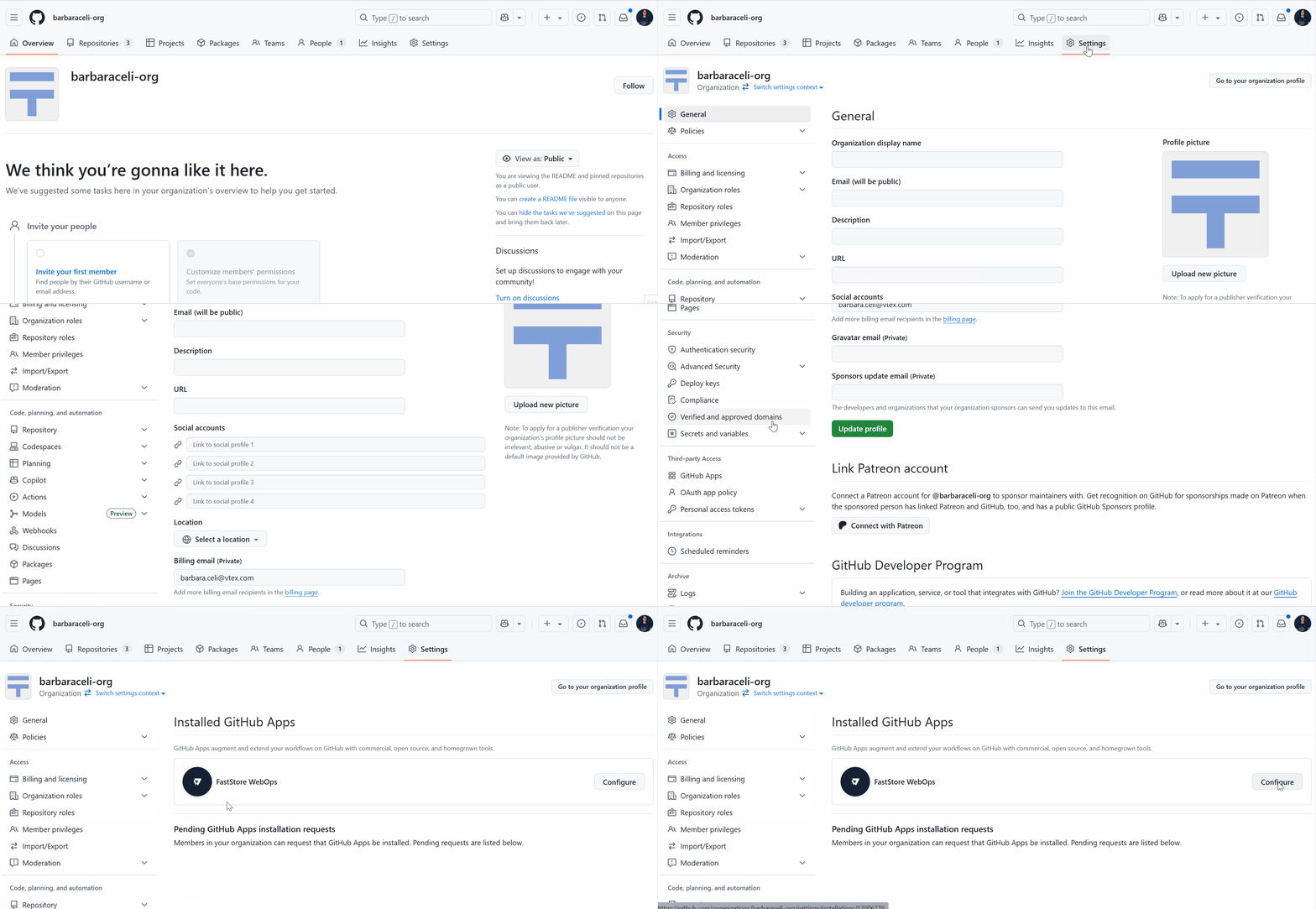
Step 6 - Identifying the repository ID
To identify the ID of the repository you want to link to WebOps, paste the following in your browser: https://api.github.com/repos/{organizationName}/{repositoryName}, replacing the values in curly brackets according to your scenario.
The id field in the JSON response is your repository ID.
Step 7 - Opening a ticket with VTEX Support
Open a ticket with our Support so the VTEX team can manually link your repository and GitHub app installation to WebOps when you can't complete the onboarding flow yourself.
Share the following information in the ticket:
- Account: Name of your account.
- Link to the repository: URL of the repository where you want to install WebOps.
- App installation ID (
installationId): The unique identifier of the FastStore WebOps installation on GitHub. See how to get this ID in Identifying the app installation ID. - Repository ID: The unique identifier of the repository you want to migrate. See how to get this ID in the Identifying the repository ID section.
The Support team will work on your request and notify you when the process is complete.