Implementing cross-border stores
Learn the initial steps for implementing a cross-border store.
A cross-border store is a specialized multistore setup where a VTEX account operates multiple localized stores for different countries or regions, each with its own pricing, logistics, and language configuration. Depending on the architecture you choose, the catalog may be shared across stores or managed separately.
In a cross-border context, a multistore setup allows a single VTEX account to manage multiple stores, such as:
http://{storeName}.com/en(English store)http://{storeName}.com/pt(Portuguese store)
In this guide, you'll learn how to start implementing your cross-border operation, including:
- Store architecture: Define your operation and choose the architecture that best fits your business needs.
- Quickstart: Discover the initial steps to implement your cross-border store.
- Fundamental tools: Set up the tools you must have for your cross-border operation to work correctly.
Cross-border stores are available for Store Framework and for FastStore through the Localization feature in FastStore v4. FastStore Localization is in Closed Beta. To become a cross-border store or request Localization access, open a VTEX support ticket and request the setup of a multistore environment.
Store architecture
To choose the most appropriate architecture that meets your business needs, address some initial questions that define the operation.
Defining the operation
Before implementing your cross-border store, make sure you have the following information ready:
- Target regions: Identify the countries/regions where your store will operate.
- Currencies and languages: Determine accepted payment currencies and supported site languages.
- Inventory management: Decide if inventory will be managed from a single country or locally in each country/region.
- Tax and export partner: Choose a partner for handling export taxes and fees for international operations. To find a partner, visit the Partners page on the VTEX website.
- Catalog translation: Check if your catalog is translated or needs localization for each country/region.
- Promotions: Plan the types of promotions for each store. Learn about the types available in Promotions guides.
- Operations: Consider any existing physical stores, sellers, or other operations abroad. Learn more in Accounts and architecture.
- Teams: Identify if different teams will manage each country/region's ecommerce operations.
- ERP systems: Confirm if each country/region has its own ERP or a centralized system.
- Payment gateway: Make sure you have a gateway that supports multiple currencies.
- Domains: Define the primary and secondary domains for your stores. Learn more in Rules for main hosts.
Choosing the store architecture
After defining your operation based on the topics above, choose the architecture for your cross-border store.
- Single account, multi-binding
- Multi-account, shared back-office systems
- Multi-account, independent back-office systems
See below the main differences between them:
| Single account, multi-binding | Multi-account, shared back-office systems | Multi-account, independent back-office systems | |
|---|---|---|---|
| VTEX accounts | One account serves multiple countries via bindings/sales channels. | Multiple accounts (usually one per country or region). A main account acts as the seller, and the others act as marketplaces. | Fully separate accounts, each operating independently. |
| Storefront/websites | Separate websites or domains bound to different sales channels within the same account. | Separate websites per account. | Separate websites per account. |
| Catalog | One shared catalog segmented by sales channels. | The main account is the source of truth for the catalog. | Each account manages its own catalog. |
| Multi-language | Supported via bindings and locales, enabling translated content from a shared catalog. | Each marketplace account localizes the catalog received from the main seller. | Multi-language support is independent per account. |
| Customer data | All customer data stored in a single Master Data instance. | Customer data stored by the marketplace account. The seller (main account) doesn't store marketplace customer data in its Master Data. | Customer data separated by account. Each account has its own Master Data with no sharing between accounts. |
| Promotions | Configured per store using sales channel segmentation and managed in the same panel. | The main account has few options for promotions because it can't access the marketplace Master Data. Promotions that rely on seller payment methods may not work. | Each account sets up its own promotions. If an account operates a marketplace with external sellers, promotion limitations apply only to that seller–marketplace relationship. |
| Checkout, OMS, Payments, Message Center | All stores share these modules and panels. | Each store manages these modules in its own Admin, independently of the main account. | Each store manages these modules in its Admin. |
| Logistics | All stores share the same logistics panel and use different warehouses. | The main account is the source of truth for logistics, but each account manages its own logistics settings in its Admin. | Each account manages its own logistics. |
| Back-office systems (ERP/PIM/WMS) | A single set of integrations connects the account to the back-office systems. | Shared back-office across accounts. The main account acts as the central connection for core services, while operations are specific to each account. | Independent back-office per account. |
All architectures support multi-currency through sales channels. The main differences lie in how prices are managed and where pricing logic is centralized.
Learn more about each approach in the Multi-language and multi-currency section of the Store architecture guide.
Quickstart
To start implementing your cross-border operation, follow the steps below:
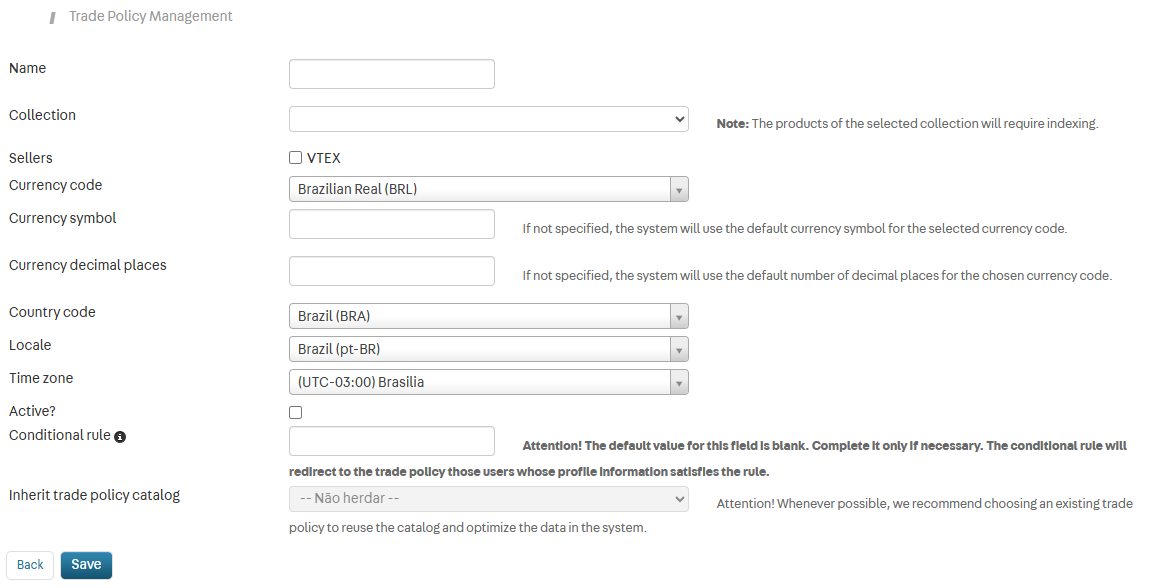
Step 1 - Configure a sales channel
On VTEX, a sales channel is a set of configurations that define a store's catalog, pricing, and logistics strategy. In a multi-binding architecture, each website is linked to a specific sales channel, allowing separate sites for different markets. Learn more in How sales channels work.
If the pricing, catalog, or logistics structure differs between markets, create separate sales channels. If two stores share the same logistics, catalog, and prices, they can use a common sales channel.
To request a new sales channel, open a ticket with VTEX Support, select the option Commercial, and click Create a trade policy. Learn more in Creating a sales channel.
When configuring sales channels, make sure the currency code and symbol, as well as the country code and cultural information, are set correctly.
Step 2 - Create a new binding
On VTEX, binding is the process of linking a website, store name, and sales channel to create a unique identifier for each store. This is essential for managing multiple stores in a single VTEX account.
In a cross‑border setup, you create multiple bindings to connect each market's domain to its corresponding sales channel and locale, so each site runs with the right catalog, currency, and language.
To create a new binding, open a ticket with VTEX Support.
You can retrieve your store's binding ID by using the following API:
_10curl --location 'https://portal.vtexcommercestable.com.br/api/license-manager/binding/site/{siteName}' \_10--header 'Content-Type: application/json'
Alternatively, follow the instructions in the Checking your store's binding ID guide.
When multiple language versions of URLs are required, create one binding for each language. Using a single binding for multiple languages isn't the proper approach. In Store Framework, even if you manually create additional URLs via GraphQL calls, it can result in duplicate content because the page defaults to the primary language. In FastStore, even if a binding is configured with multiple locales, only the default locale is considered.
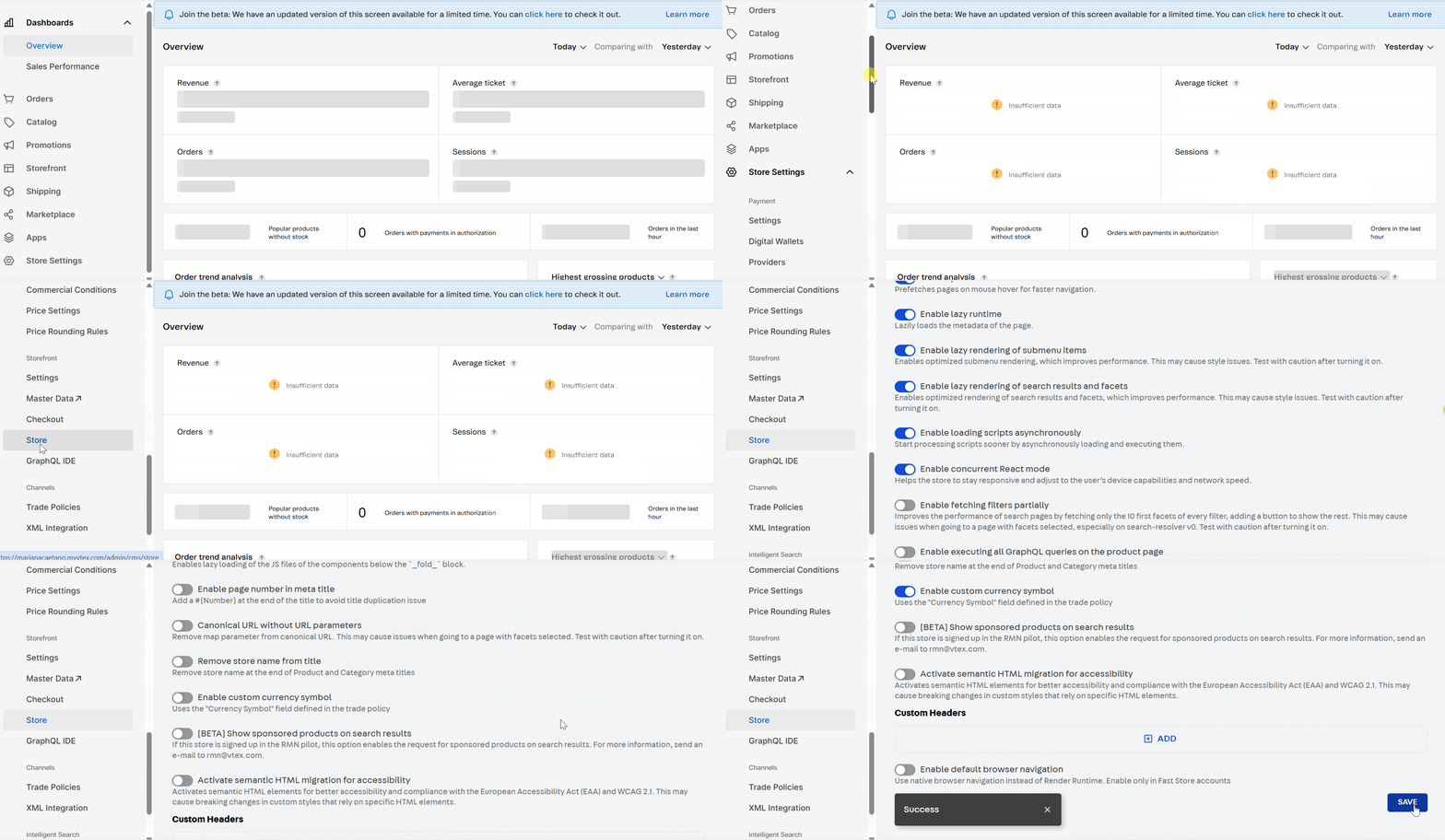
Step 3 - (Store Framework) Enable the use of a custom currency symbol
This step applies to Store Framework stores. In FastStore, currency is defined by the sales channel associated with each binding. Learn more in Handling internationalization with the Localization feature.
To enable the use of a custom currency symbol in your store, follow these steps:
- In the VTEX Admin, go to Store Settings > Storefront > Store.
- Click the
Advancedtab. - Enable the
Enable custom currency symboloption.
Use the currency symbol field defined in the sales channel.
Fundamental tools
The tools you need depend on your storefront technology. Sales channels, bindings, and catalog translation apply to both Store Framework and FastStore.
Shared tools
-
Catalog translation: To translate catalog information (categories, products, SKUs, brands, specifications, and collections) and override the automatic translation, we recommend using the Catalog Multi-Language API. It provides granular control over translations for products, SKUs, categories, brands, and other entities, while integrating natively with Intelligent Search and supporting Translation Management Systems (TMS). To learn how to implement it, see the Catalog multi-language integration guide, including the implementation by storefront type.
Product information on the Order Placed pages and in transactional emails is automatically translated. On the My Account page, product information isn't translated automatically and may require additional customization.
The simultaneous use of both the Catalog Multi-Language API and the GraphQL catalog translation flow isn't supported for catalog entities. Once the Catalog Multi-Language feature is activated, you'll no longer be able to manage catalog translations using GraphQL. For stores that still use the legacy GraphQL translation flow, see Translating Catalog content.
Store Framework
- Locale Switcher: Allows switching languages on the site.
- Messages: Handles storefront component translations per language (binding). Use it especially for specifications, breadcrumbs, and filters. Learn more in Translating storefront content and Overwriting the Messages app.
- Translatable URLs: Cross-border stores that share the same catalog can translate catalog URLs (product, category, and brand slugs) per binding. For example, a product available as
http://{storeName}.com/us/yellow-dress/pin one market can resolve ashttp://{storeName}.com/ar/vestido-amarillo/pin another. Catalog URL translations are accepted for each binding — not for multiple languages within a single binding. Learn more in Cross-border store content internationalization.
FastStore
FastStore supports cross-border and multi-language stores through the Localization feature. Requirements and setup include:
- FastStore v4: Required for Localization.
- CMS: Localization works with the CMS and isn't available for Headless CMS (legacy).
- Bindings and sales channels: Each domain is associated with a sales channel (currency, catalog, and pricing) and a locale. Configure bindings with VTEX Support, then enable the
localizationflag indiscovery.config.jsand the localization button in the CMS Navbar.
For the full implementation, see Handling internationalization with the Localization feature.