Setting up Delivery Promise components (Beta)
This feature is in open beta phase. If you're interested in testing it, contact our Support team.
The Delivery Promise (Beta) feature helps create a more accurate and reliable shopping experience by ensuring customers only see products the store can deliver to the provided address or pick up at available locations.
Availability is determined by the following rules:
- When a pickup point is selected — whether in the header or on its own page — the system displays all available pickup points within a 50 km radius configured in Checkout. There's no limit to the number of pickup points displayed.
- For the nearby pickup filter, pickup points within a 10 km radius of the shopper's location are displayed, with a maximum of 40 pickup points.
Delivery Promise supports any seller architecture (franchise accounts, VTEX sellers, Seller Portal, and external sellers).
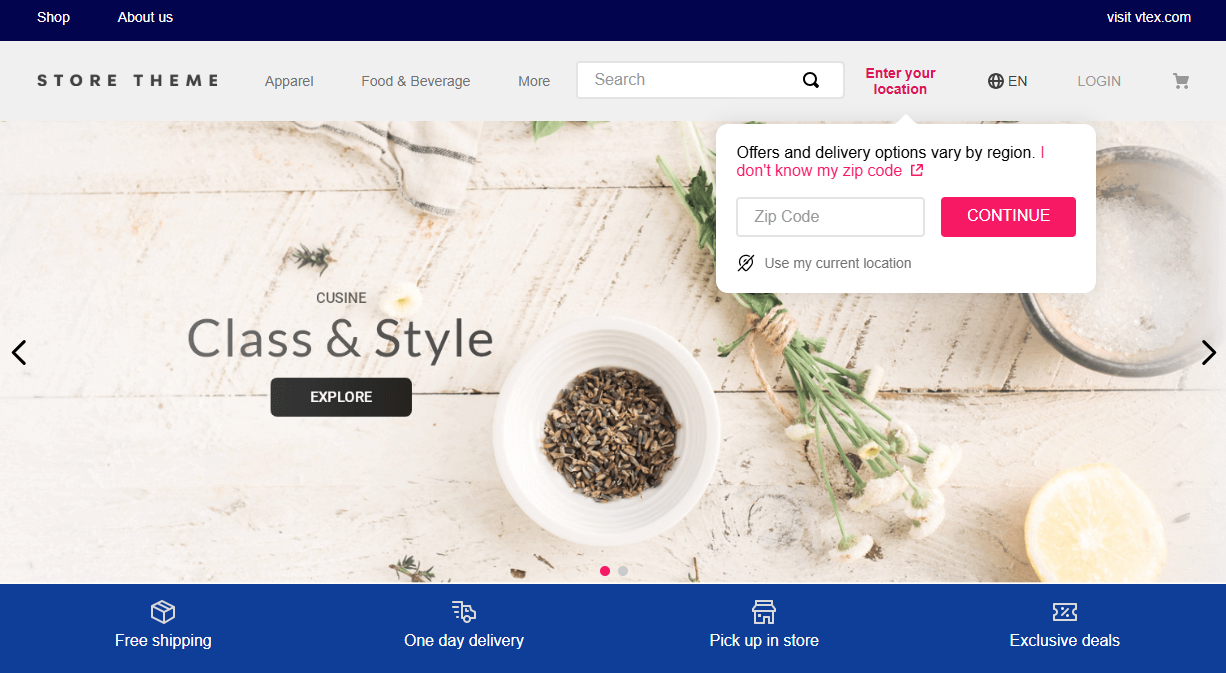
If you're building your storefront with Store Framework, you can enable this experience using two key apps:
- Delivery Promise Components: Used to display blocks for postal code, delivery versus pickup, and pickup point selection.
- Search Result: Used to implement sidebar filters.
Additionally, you can leverage the Delivery Promise Suggestions API to display delivery-related tags and badges directly on product cards in the Product Listing Page (PLP), such as "Same Day Delivery", "Express Delivery", and "Pickup Today". Showing these suggestions brings delivery context into the shopping journey earlier, improving product discoverability and conversion rates. For more details, see Gathering delivery promise information.
This guide walks you through the basic setup needed to implement Delivery Promise in your store.
Explore the Delivery Promise Figma library to learn more about component specs, usage guidelines, reference use cases, and behavioral patterns.
Before you begin
To enable Delivery Promise in your store, you must meet the following conditions:
- The store must use Intelligent Search.
- Check whether you've got version
0.5.0or later of thesearch-sessionapp installed. To do this, run thevtex listcommand in your terminal and search for the app in the results. If you don't have this app installed, run the commandvtex install vtex.search-session. - Your storefront must be built with Store Framework to enable the components in this guide. If you use FastStore, check the FastStore Delivery Promise implementation guide. If your store is headless, see Delivery Promise for headless stores.
Instructions
Step 1 - Request Delivery Promise activation
Contact our Support team to request the activation of Delivery Promise.
Activation happens in two stages, so you can validate the experience before it affects production traffic:
DpReady: The initial state Support applies to your account. In this state, Delivery Promise is available for testing, but doesn't affect production search requests. This allows you to validate Delivery Promise in a development workspace before applying it tomaster.DpLive: The production state. After you finish testing, contact Support again to request promotion fromDpReadytoDpLive. From that point on, search requests with Delivery Promise hashes or ZIP codes are processed by Delivery Promise in production.
Step 2 - Create a development workspace
While your account is in the DpReady state, you can validate Delivery Promise without affecting production search traffic by using a development workspace. This allows you to validate the full storefront experience (postal code modal, shipping method selector, pickup point selector, and sidebar filters) while master continues to serve production traffic without Delivery Promise.
Create a development workspace by running the following command in your terminal:
_10vtex use {wokspaceName}
Replace values between curly braces according to your scenario.
Perform the configurations in the next steps in this workspace to validate them end-to-end before promoting the account to DpLive.
Step 3 - Display a location selector
To use Delivery Promise, customers must provide a delivery address early in their shopping journey. The delivery-promise-components app exposes Store Framework blocks that collect the location and, optionally, the fulfillment method (delivery vs. pickup or a specific pickup point).
-
Add the
delivery-promise-componentsapp to your theme dependencies inmanifest.jsonas shown below:_10"dependencies": {_10"vtex.delivery-promise-components": "1.x"_10} -
Declare the blocks in your theme header (or another layout that should show the controls). The app exposes three header blocks.
Block Description shopper-location-setterRequired. Collects the shopper's location (postal code or equivalent). This value drives all Delivery Promise subsequent availability calculations and filters. shipping-method-selectorOptional. A control for choosing between delivery and pickup after setting a location. pickup-point-selectorOptional. A control for choosing which pickup point to use after setting a location. The
shopper-location-setterblock is required, and you must always include it in the header.shipping-method-selectorandpickup-point-selectorare optional. These blocks complement the location setter but don't replace it, since both depend on the location already set in the session. Add them only if you want to expose additional controls in the UI. Otherwise, keep the header simple: eithershopper-location-setteralone, orshopper-location-setterpaired with one of the selectors. Using all three together is possible but uncommon.Choose the configuration that matches your use case:
Location only
Use the
shopper-location-setterblock when you only need the shopper to provide their location, without separate header controls for shipping method or store.Example:
_11"header-row#1-desktop": {_11"children": ["shopper-location-setter"]_11},_11_11"shopper-location-setter": {_11"props": {_11"required": false,_11"mode": "default",_11"showLocationDetectorButton": false_11}_11}Location + shipping method
Use
shopper-location-setterandshipping-method-selectorwhen you want the header to make the delivery or pickup choice explicit right after the shopper enters a location.Example:
_21"header-row#1-desktop": {_21"children": [_21"shopper-location-setter",_21"shipping-method-selector"_21]_21},_21_21"shopper-location-setter": {_21"props": {_21"required": false,_21"mode": "default",_21"showLocationDetectorButton": false_21}_21},_21_21"shipping-method-selector": {_21"props": {_21"required": false,_21"mode": "default"_21}_21}Location + pickup point
Use
shopper-location-setterandpickup-point-selectorwhen pickup is a central part of your experience, and you want both "where am I?" and "which store?" visible in the header.Example:
_20"header-row#1-desktop": {_20"children": [_20"shopper-location-setter",_20"pickup-point-selector"_20]_20},_20_20"shopper-location-setter": {_20"props": {_20"required": false,_20"mode": "default",_20"showLocationDetectorButton": false_20}_20},_20_20"pickup-point-selector": {_20"props": {_20"mode": "default"_20}_20} -
Use the props below to customize each block's behavior.
shopper-location-setterProp Type Default Description requiredbooleanfalseWhen true, opens a non-dismissible postal code modal until the shopper sets a valid code. Whenfalse, uses the popover flow.modestring"default"Display mode: defaultoricon.showLocationDetectorButtonbooleanfalseShows the control that uses the browser geolocation API to suggest the postal code. Available only on this block. shipping-method-selectorProp Type Default Description requiredbooleanfalseWhen true, the shipping method modal can't be dismissed until a method is selected (after entering a postal code).modestring"default"Display mode: defaultoricon.pickup-point-selectorProp Type Default Description modestring"default"Display mode: defaultoricon.
Step 4 - Implement sidebar filters
To display Delivery Promise filters in the search sidebar, configure the Search Result app as described below.
Delivery Promise filters are a beta feature and may be subject to breaking changes. If you customize this functionality, ensure your implementation can handle future updates.
-
In your theme's
manifest.json, add thesearch-resultapp as a dependency:_10"dependencies": {_10"vtex.search-result": "3.x"_10} -
Make sure your theme uses either the
search-result-layout.desktopor thesearch-result-layout.mobileblock, depending on the layout. Inside these layouts, include thefilter-navigator.v3block so the sidebar can render filters: -
Set
showShippingMethodFacettotruein each flexible search layout where you want the Delivery Promise filters to appear. By default, this property is disabled, so the shipping method filter remains hidden unless you explicitly enable it. The example above enables it on both desktop and mobile layouts. -
Optionally, use the
availableShippingValuesprop in the same layout blocks to define which shipping options to display. If you don't define this prop or set it to an empty array, the system uses the default options:delivery,pickup-in-point, andpickup-nearby. When you provide a non-empty array, it replaces the default entirely and shows only the specified values. Supported values correspond to the search API facet names:delivery,pickup-in-point,pickup-nearby,pickup-all.Example with an explicit list (same as the default) plus
pickup-allon desktop and mobile:_12"search-result-layout.desktop": {_12"children": ["filter-navigator.v3", "search-content"],_12"props": {_12"showShippingMethodFacet": true,_12"availableShippingValues": [_12"delivery",_12"pickup-in-point",_12"pickup-nearby",_12"pickup-all"_12]_12}_12}
The shipping method facet appears only when showShippingMethodFacet is enabled. If you set availableShippingValues, the component lists those options; otherwise, it falls back to the default. Other Delivery Promise-related facets behave as usual.
Step 5 - Validate the experience in the development workspace
Link your theme in the development workspace created in Step 2 - Create a development workspace and open the workspace URL (for example, https://{workspaceName}--{accountName}.myvtex.com) to validate the Delivery Promise experience end-to-end, including the postal code modal, shipping method selector, pickup point selector, and sidebar filters.
Replace values between curly braces according to your scenario.
Step 6 - Make Delivery Promise live
Once you finish testing, contact Support to promote the account from DpReady to DpLive, and follow the standard release flow to make your theme changes public. For detailed instructions, see Making your theme content public.
From that point on, Delivery Promise applies to production traffic, and search responses return deliveryPromiseEnabled: true.