Installing Activity Flow in headless stores
Learn how to install Activity Flow in your headless store.
In this guide, you'll learn how to install and configure the Activity Flow script in your headless store.
This setup allows Activity Flow to capture real user interactions, enabling insights into performance, engagement, and shopper behavior.
Instructions
Step 1 - Adding the Activity Flow script asynchronously
Activity Flow relies on a client-side script to collect navigation data.
To ensure that it doesn't delay page rendering, you must load the script asynchronously.
- Open your headless storefront project.
- Inside the
<head>tag of each page you want to monitor, add the following snippet:
_10<script>_10 (function(v,t,e,x,a,f,s){_10_10f=v.vtexaf=v.vtexaf||function(){(f.q=f.q||[]).push(arguments)};_10 f.l=+new Date;s=t.createElement(e);s.async=!0;_10 s.src=x;a=t.getElementsByTagName(e)[0];_10 a.parentNode.insertBefore(s,a)_10_10})(window,document,'script','https://activity-flow.vtex.com/af/af.js');_10</script>
Step 2 - Defining default parameters
Next, configure your store's identification parameters.
These settings allow Activity Flow to recognize the account, environment, and workspace to which the events belong.
- Add a new script in the
<head>tag, right after the Activity Flow script, with the following structure:
_10<script>_10window.vtexafenv = {_10 account: '<ACCOUNT NAME>',_10 env: '<ENVIRONMENT TYPE>',_10 workspace: '<WORKSPACE TYPE>'_10};_10</script>
account(required): Name of your VTEX account.env(optional): Environment type. For example,prodortest.workspace(optional): The workspace name, useful for A/B testing or distinguishing between environments.
Replace the values between the curly brackets with your account, environment, and workspace names.
If you prefer, you can combine both the script loader and the parameter definition into a single script block.
Step 3 - Validate the installation
To validate whether the script is installed in your store, follow the steps below:
- Open the page where you set up the script.
- Open DevTools and go to the Network tab.
- Search for
af.jsand click it. - In the Header tab, confirm whether the Request URL is
https://activity-flow.vtex.com/af/af.js. - Check whether there are errors in the console. You can also trigger a monitorable action to see events.
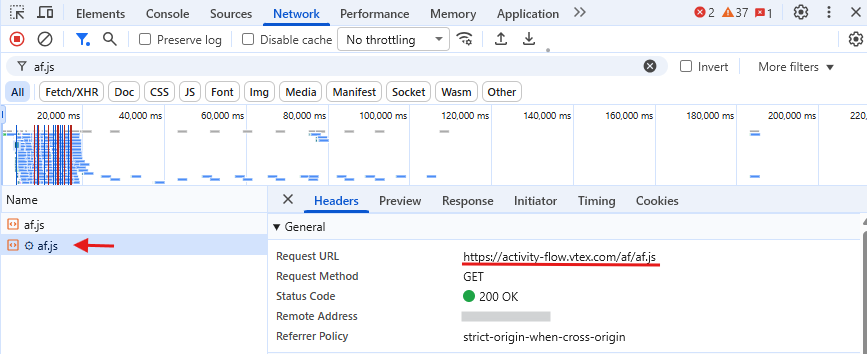
If the af.js file doesn't show in the Network tab, make sure that the snippet is in the <head> of the page and that there are no script blockers. If the setup is correct and the problem persists, open a ticket with VTEX Support.
Next steps
To track Intelligent Search analytics events on your search screens, see Tracking search analytics events in headless web stores.