Batch inventory updates (Beta)
Learn how to update large volumes of inventory data asynchronously using the new Batch operations endpoints in the Logistics API.
This feature is in early access, which means that we are working to improve it. If you want to use this feature, please contact our Support Center.
The Batch operations endpoints of the Logistics API are designed for merchants with large catalogs and multiple sellers or warehouses that need to update inventory across many SKU–seller combinations. By uploading a single CSV file to Amazon S3, merchants can perform full inventory refreshes and bulk synchronizations, track processing through the API, and avoid a high number of requests to per-SKU endpoints.
This guide walks you through the end-to-end flow: creating a batch job, uploading the CSV file, committing the batch for processing, polling the processing status, and downloading the error report if there are failed rows.
The integration involves four API endpoints and one direct upload to the pre-signed S3 URL returned by VTEX:
- Create batch: Call the Create batch inventory job endpoint to register a new batch. The response includes a
batchIdand a pre-signed S3 URL for the CSV upload. - Upload CSV: Upload the CSV file directly to S3 using the pre-signed URL. This step does not go through the VTEX API. The CSV file size must not exceed 500 MB.
- Confirm batch: Call the Confirm batch inventory endpoint to confirm the upload and queue the batch for processing.
- Monitor processing: Poll the Get batch inventory status endpoint until the batch reaches a terminal status.
- Download error report (optional): If the status response indicates
errorCount > 0, call the Get batch inventory errors endpoint to retrieve a pre-signed URL for the error CSV.
Create a batch inventory job
Use the Create batch inventory job endpoint to register a new batch. The response returns the batchId you will use throughout the flow and the pre-signed upload object you will use to send the CSV to S3.
Response example:
_12{_12 "batchId": "550e8400-e29b-41d4-a716-446655440000",_12 "status": "AWAITING_UPLOAD",_12 "upload": {_12 "method": "PUT",_12 "url": "https://availability-bulk-upload.s3.amazonaws.com/550e8400-e29b-41d4-a716-446655440000.csv?X-Amz-Algorithm=AWS4-HMAC-SHA256&...",_12 "headers": {_12 "Content-Type": "text/csv"_12 },_12 "expiresAt": "2026-01-12T20:10:00Z"_12 }_12}
The batch starts in AWAITING_UPLOAD status and remains in this state until the CSV is uploaded and committed.
The pre-signed URL returned in
urlis valid for 30 minutes (seeexpiresAt). If the URL expires before you upload the file, create a new batch.
Upload the CSV to S3 (data plane)
Using the CSV file template as a reference, create a .csv file containing the inventory updates you want to make. Name the file after the batchId returned by the Create batch inventory job endpoint (for example, 550e8400-e29b-41d4-a716-446655440000.csv).
Next, upload the CSV file directly to S3 using the url returned by the Create batch inventory job endpoint. This request does not go through the VTEX API.
Example request:
_10curl -X PUT \_10 "{presignedUrl}" \_10 -H "Content-Type: text/csv" \_10 --data-binary "@{batchId}.csv"
Replace {presignedUrl} with the value returned in url, and {batchId} with the batchId from the same response. A successful upload returns an HTTP 200 OK response from S3.
The CSV file name must match the
batchIdreturned in the Create batch inventory job response (for example,550e8400-e29b-41d4-a716-446655440000.csv). Use the HTTP method (PUT) and headers (Content-Type: text/csv) returned in theuploadobject.
CSV file template
The CSV file must contain one row per SKU, warehouse, and account combination you want to update. Use the column headers below, in this order:
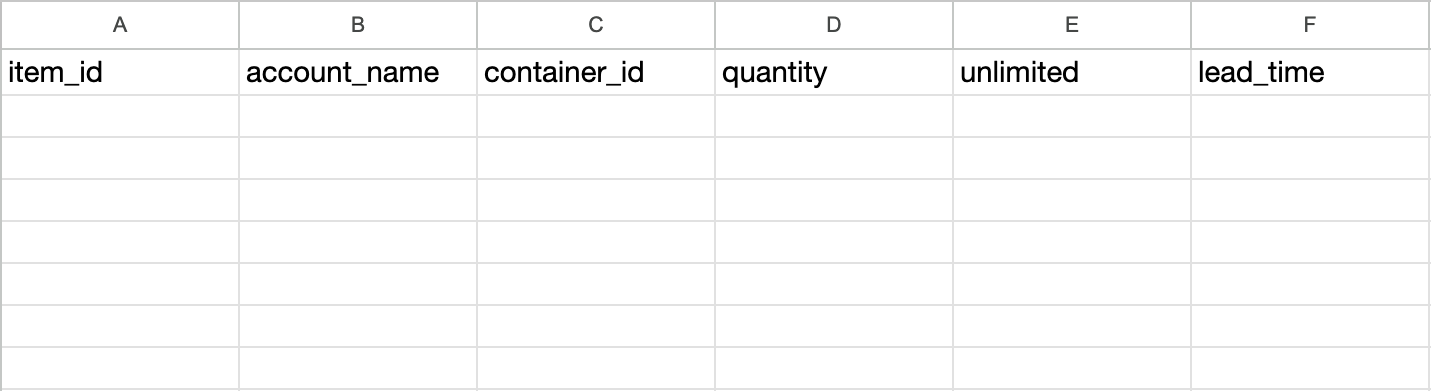
| Field | Type | Required | Description |
|---|---|---|---|
item_id | string | Yes | SKU ID as registered in the catalog. Rows with a nonexistent SKU return the UNKNOWN error code. |
account_name | string | Yes | VTEX account name of the warehouse, exactly as it appears in the store URL (https://{accountName}.myvtex.com). |
container_id | string | Yes | Warehouse ID where the inventory update should be applied, as configured in Warehouse & Inventory Management. An incorrect or nonexistent ID causes the row to fail. |
quantity | integer | Yes | Number of units available for the SKU in the given warehouse. Must be a non-negative integer. Still required when unlimited is true, but the quantity value is ignored in that case. |
unlimited | boolean | No | Indicates whether the SKU has unlimited inventory (true) or a finite quantity (false). Use lowercase true or false only. Defaults to false when omitted. |
lead_time | string | No | Shipping lead time for the SKU at the warehouse, in ISO 8601 duration format (for example, PT24H for 24 hours or PT0S for immediate availability). Defaults to 0 when omitted. An invalid format causes the row to fail. |
Do not rename, reorder, or remove the header columns. Submit every field in the order defined above.
CSV example:
_10item_id,account_name,container_id,quantity,unlimited,lead_time_1012345,barcelonastore,WH01,150,false,PT24H
Confirm the batch
After uploading the CSV to S3, call the Confirm batch inventory endpoint, passing the batchId as a path parameter. This request confirms that the upload is complete and triggers the asynchronous processing of the batch.
You have 30 minutes to confirm the batch after uploading the CSV file, otherwise the upload will expire and you will have to start the process again.
A successful commit returns an HTTP 202 Accepted response, and the batch transitions to the QUEUED status. From this point on, processing is handled asynchronously by VTEX, and you can use the status endpoint to track progress.
VTEX processes one batch at a time per account. Additional batches are accepted and stay in QUEUED until the current one finishes.
If you call this endpoint twice in parallel for the same
batchId, the second request will receive a423 Lockedresponse. Wait for the first commit to complete before retrying.
Monitor the batch status
Use the Get batch inventory status endpoint to track the processing progress of the batch. The response returns row counts, error counts, percentage completed, processing stages, and a final summary once the batch is processed.
Response example:
_26{_26 "batchId": "550e8400-e29b-41d4-a716-446655440000",_26 "status": "PROCESSING",_26 "rowCount": 13800000,_26 "processedCount": 8500000,_26 "errorCount": 0,_26 "amountCompleted": 61,_26 "createdAt": "2026-01-12T20:00:00Z",_26 "startedAt": "2026-01-12T20:01:00Z",_26 "stages": {_26 "ingestedChunks": 276,_26 "classifiedChunks": 250,_26 "processedChunks": 170,_26 "notifiedChunks": 165,_26 "totalChunks": 276_26 },_26 "summary": {_26 "insertCount": 5200000,_26 "updateCount": 3100000,_26 "noopCount": 200000,_26 "conflictCount": 0,_26 "skippedDueApiUpdateCount": 0,_26 "perItemRoutedCount": 0,_26 "dlqEventsCount": 0_26 }_26}
The status field can return the following values:
| Status | Description |
|---|---|
AWAITING_UPLOAD | Batch created, waiting for CSV upload. |
QUEUED | Upload committed, waiting to begin processing. |
PROCESSING | Batch is currently being processed. |
COMPLETED | All rows processed successfully. |
COMPLETED_WITH_ERRORS | Processing finished with some row errors. |
FAILED | Processing failed due to validation or system errors. |
EXPIRED | Batch metadata has expired. |
COMPLETED, COMPLETED_WITH_ERRORS, FAILED, and EXPIRED are terminal statuses. Once any of these is returned, no further updates will be made to the batch and you can stop polling.
Download the error report
If the batch status response indicates errorCount > 0, use the Get batch inventory errors endpoint to retrieve a pre-signed URL for downloading a CSV report with all rows that failed processing.
Response example:
_10{_10 "batchId": "550e8400-e29b-41d4-a716-446655440000",_10 "downloadUrl": "https://availability-bulk-upload-errors.s3.amazonaws.com/550e8400-e29b-41d4-a716-446655440000-errors.csv?X-Amz-Algorithm=AWS4-HMAC-SHA256&...",_10 "errorCount": 3_10}
The downloadUrl is a pre-signed S3 URL valid for 60 minutes. The error report itself remains available until the batch metadata expires, which is 7 days after batch completion.
The endpoint returns a
204 No Contentresponse iferrorCountis0or the batch is not in a status that produces an error report (PROCESSING,COMPLETED,COMPLETED_WITH_ERRORS, orFAILED).
Error CSV schema
The error CSV contains the following fields:
| Field | Type | Description |
|---|---|---|
line_number | integer | Original line number in the uploaded CSV. |
item_id | string | SKU identifier from the failed row. |
container_id | string | Warehouse ID from the failed row. |
error_code | string | Machine-readable error code. |
error_message | string | Human-readable error description. |
Example:
_10line_number,item_id,container_id,error_code,error_message_101523,12345,WH01,INVALID_QUANTITY,"quantity cannot be negative: -50"_104892,67890,WH01,MISSING_REQUIRED_FIELD,"container_id is required"_1010234,11111,WH01,INVALID_DATE_FORMAT,"lead_time is not valid"
Error types
The error report distinguishes between two categories of errors:
- Deterministic errors: Caused by invalid or incomplete data in the submitted file, such as missing required fields or invalid values. They are detected during file ingestion from S3 and fail the affected records immediately. The system does not retry these operations automatically. To resolve them, fix the data in the CSV file and submit a new batch.
- Non-deterministic errors: Caused by infrastructure or system issues. The system automatically retries the operation up to three times. If it still fails, the message is sent to a Dead Letter Queue (DLQ) for further investigation. These errors appear as
UPDATE_FAILEDin the error CSV.
Error codes
| Error code | Description |
|---|---|
INVALID_QUANTITY | Quantity value is invalid (negative or non-numeric). |
MISSING_REQUIRED_FIELD | A required field is empty or missing. |
INVALID_DATE_FORMAT | A date or time field has an invalid format. |
UPDATE_FAILED | Database update failed after retries (non-deterministic error). |
INSERT_CONFLICT | Insert conflicted with a concurrent operation. |
INVALID_FORMAT | Row format is invalid (for example, wrong number of columns). |
CONFLICT | Compare-And-Set conflict or per-item routing conflict. |
UNKNOWN | Unclassified error. |
Best practices
- Send only the inventory records that changed: Include in each batch only the SKU and warehouse combinations whose inventory changed. Avoid sending a full snapshot of your inventory on every update, since rows that are already up to date add processing time without changing the result. Follow the same practice when updating inventory through the per-SKU Logistics API.
- Reuse the same
batchId: Always use thebatchIdreturned by the Create batch inventory job endpoint when uploading the CSV, committing the batch, polling its status, and retrieving errors. - Respect the upload window: The pre-signed upload URL expires 30 minutes after creation. If it expires before the upload is complete, create a new batch.
- Prefer one large batch over many small ones: Because the account processes one batch at a time, a single larger CSV is usually faster than several smaller uploads.
- Avoid concurrent commits: Do not commit the same batch in parallel. A second commit while one is in progress returns a
423 Lockedresponse. - Use a reasonable polling interval: When monitoring large batches, poll the status endpoint at intervals proportional to the batch size to avoid unnecessary requests.
- Fix deterministic errors at the source: If the error report shows deterministic errors, correct them in your source data and submit a new batch instead of retrying the same file.