Configuring Shopper entity access
Learn how to configure API credentials to enable Shopper entity data in your B2B FastStore My Account pages.
2 min read
To display shopper information on My Account pages, such as the details shown in the Ordered by card on the order details page, you must configure the required permissions and API credentials.
Before you begin
Make sure you have enabled the My Account feature in your B2B FastStore project.
Step 1: Creating a Role with Dynamic Storage permissions
-
Access the VTEX Admin, go to Account Settings > User Roles.
-
Create a new role or edit an existing one by adding the Dynamic Storage product to the role.
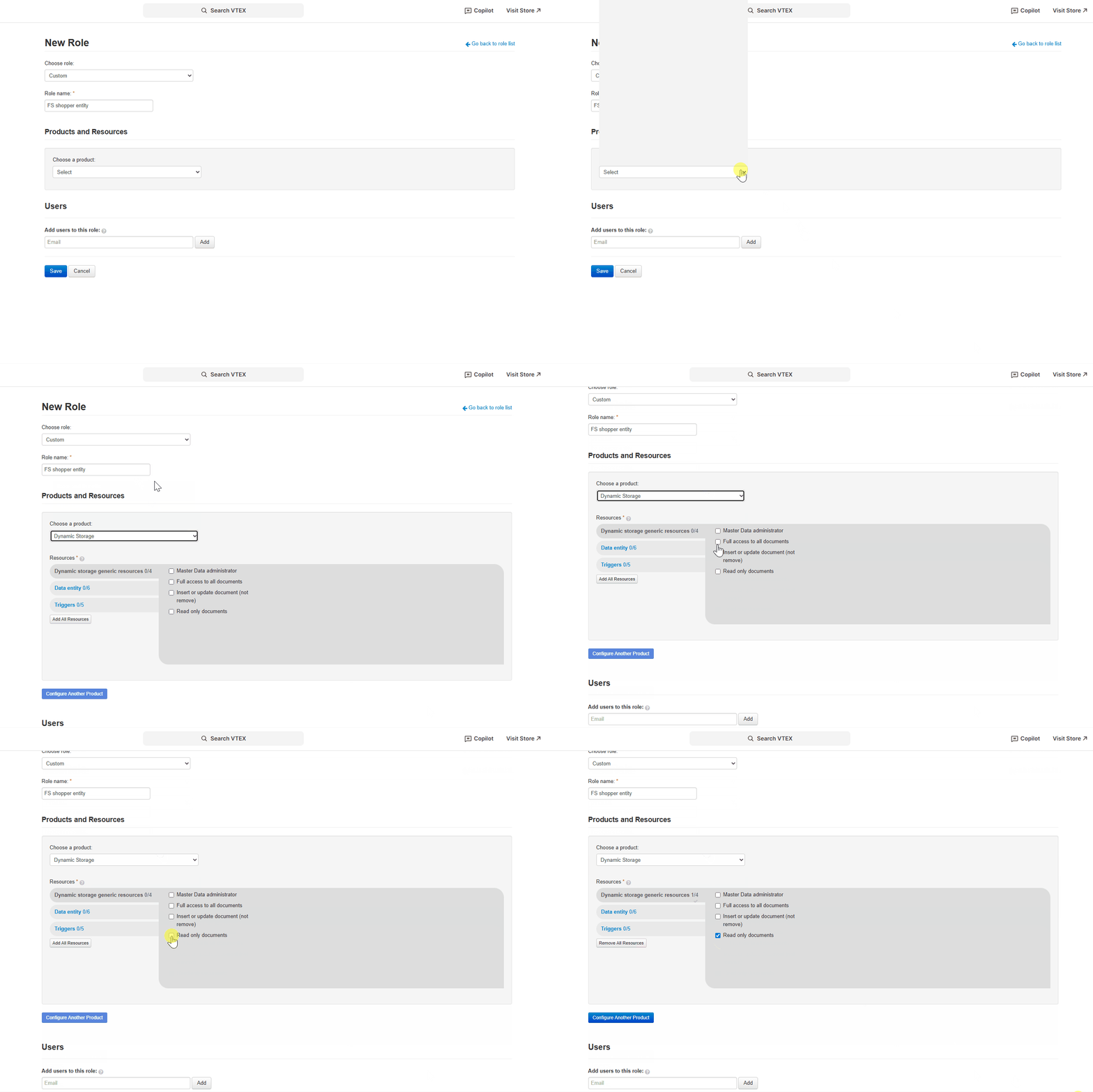
-
Under Resources, select the Read only documents permission.
-
Save the role.
Step 2: Generating an API Key
After creating the role, you need to generate an API key to authenticate FastStore's server-side requests to VTEX services. This API key will be used by your FastStore project to securely fetch Shopper entity data from Dynamic Storage.
-
In the VTEX Admin, go to Account > API Keys.
-
In the Generated tab, click
Generate Key. -
Complete the fields with the following:
Field name Description Value example Key identification Name that identifies the key FS SHOPPER API KEYRoles Select one or more roles for the key Select the role created in Step 1, FS shopper entity -
Click
Generate.
After generating the API key, the App Key and App Token will be displayed only once in the interface. Copy and securely save both credentials immediately, as you'll need them in the next step.
Step 3: Adding credentials to your project
You need to add the API credentials to your project using environment variables. You can add them by using WebOps secrets or, for local development, by using the
vtex.env file.Using WebOps secrets
Follow the Managing Secrets guide to securely store your credentials to your project:
| Key | Value |
|---|---|
FS_DISCOVERY_APP_KEY | YOUR_APP_KEY |
FS_DISCOVERY_APP_TOKEN | YOUR_APP_TOKEN |
ReplaceYOUR_APP_KEYandYOUR_APP_TOKENwith the App Key and App Token credentials you saved in the previous step.
Using .env file for local development
For local testing, you can use the
vtex.env file as described in the local development guide.-
Create or open the
vtex.envfile in your project root. -
Add the following environment variables using the credentials from Step 2:_10FS_DISCOVERY_APP_KEY=YOUR_APP_KEY_10FS_DISCOVERY_APP_TOKEN=YOUR_APP_TOKEN
Never commit your.envfile or expose your API credentials in public repositories.
Once configured, your My Account pages will have access to Shopper entity data, enabling features like displaying who placed an order and filtering orders by shopper.