Implementing Google One-tap login
Learn how to implement the Google One-tap login in your Store Framework store.
In this guide, you'll learn how to set up the Google One-tap login feature in your store.
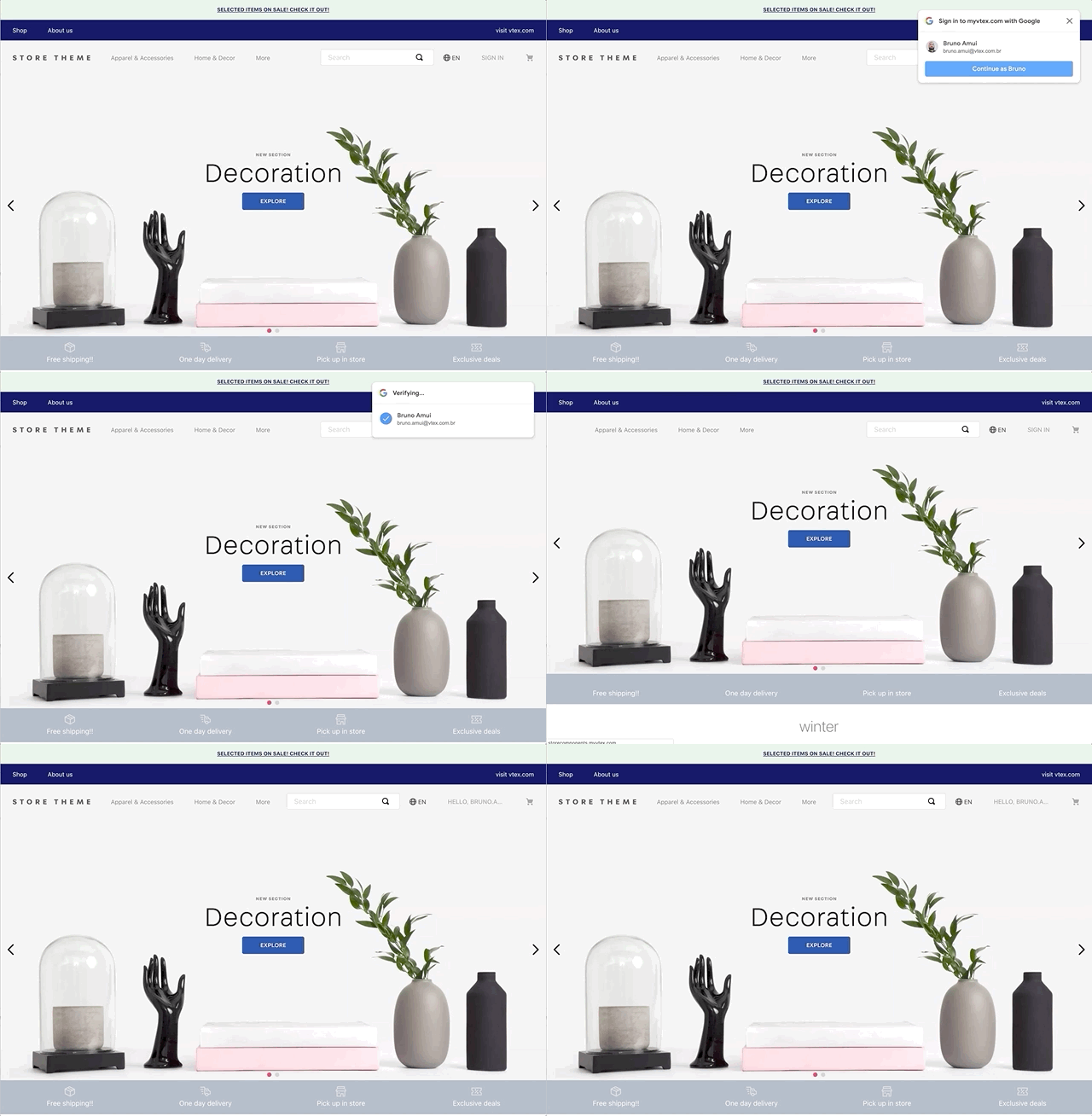
Google One-tap authenticates users through a pop-up, creating a streamlined login experience. With this feature, a small pop-up is displayed, allowing returning users to sign in with a single click.
Before you begin
Use a store built with Store Framework
Ensure your store has a Store Theme developed following the Storefront guide.
Install the vtex.login app
- In your terminal, log in to your account by running the
vtex login {{accountName}}command. Replace the curly brackets with your account name. - Run the
vtex install vtex.login@2.xto install thevtex.loginapp in your store.
Configure the Google OAuth 2.0 integration
The One-tap flow requires the store to have Google OAuth login set up. Learn more in the guide Adding a Client Id and a Client Secret to log in with Google.
Instructions
Step 1 - Set up the Google OAuth 2.0 app
- In the Google Developers Console, go to the Google OAuth 2.0 configuration page.
- Add all store domains to the Authorized domains list. Learn more in Google's guide Authorized Domains.
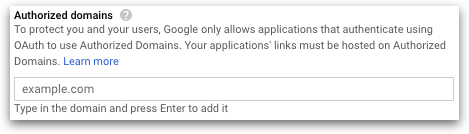
Include both the website domain and the
{{accountName}}.myvtex.comdomain. The restricted.myvtex.comdomain may be used for testing purposes.
For more details on how to set up the Google OAuth app, refer to Google's documentation: Configure your OAuth Consent Screen and Setting up OAuth 2.0.
Step 2 - Configure One-tap on Site Editor
-
In the VTEX Admin, go to Storefront > Site Editor.
-
In the side menu, click the Login block. A new section for Google One-tap will be displayed.
-
Check the Enable Google One-tap sign up toggle to enable the feature in your store's Site Editor.
-
Configure the following settings:
- Google One-tap alignment: Choose which side of the page the pop-up appears on. Possible values:
RightorLeft. - Google One-tap top margin: Set the top margin for the pop-up. This field accepts standard CSS
topvalues (for example:10px,4rem).
- Google One-tap alignment: Choose which side of the page the pop-up appears on. Possible values:
-
Click
Save.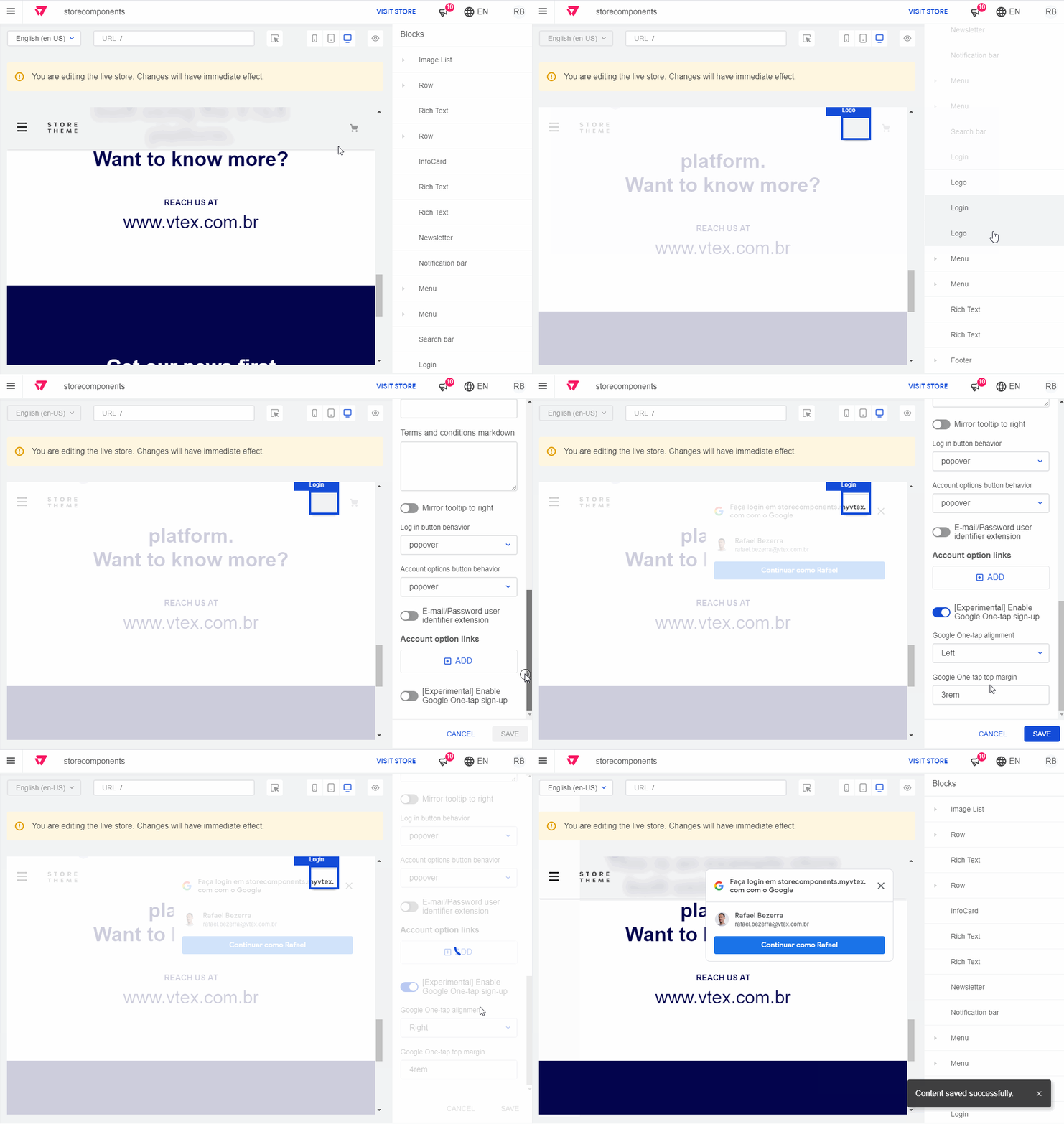
After following these steps, the Google One-tap feature will be active, and the pop-up will appear for signed-out users browsing your store.
Google One-tap flow
Google One-tap flow is implemented by the vtex.login app. The process is described below:
-
vtex.loginchecks if the user is logged in. The One-tap flow only starts for logged-out users. -
vtex.logincalls the VTEX ID API to get the store's OAuthclientId. -
vtex.logintriggers the One-tap pop-up. -
The user clicks the Continue as button.
-
Google checks the user's identity and returns a JSON Web Token (JWT) to
vtex.login. -
vtex.loginPOSTs a form containing the JWT and redirects the user to an endpoint at the VTEX ID API. -
The API validates the JWT and redirects the user back to the website.
