Configuring production and preview branches in WebOps
4 min read
In this guide, you'll learn how to configure custom branches for production builds and preview deployments in FastStore WebOps, enabling you to use different branches for production and QA accounts from the same repository.
FastStore WebOps allows you to customize the branch that generates production builds and configure the branches that generate preview deployments through the Integrations tab. This feature is particularly useful for merchants who maintain separate production and QA accounts, enabling you to manage both environments from a single repository without code duplication.
With branch customization, you can:
- Configure a custom production branch: Choose any branch from your repository to generate production builds for your account.
- Filter preview deployments: Control which branches generate preview builds using include and exclude patterns.
If you don't configure a custom production branch, WebOps will use the repository's default branch (typicallymain). This maintains backward compatibility with existing projects.
Use cases
Managing separate production and QA environments
If you maintain separate VTEX accounts for production and QA environments, branch customization allows you to use a single GitHub repository for both accounts while keeping their deployments independent. This eliminates code duplication and simplifies maintenance.
Example scenario:
- Production account (
mystore): Configured to use themainbranch for all production deployments. - QA account (
mystoreqa): Configured to use thehomologbranch for testing and validation.
Both accounts share the same repository, but each points to its respective branch for deployments. This setup enables your QA team to test changes in the
homolog branch without affecting production, while production deployments automatically use the stable main branch.Optimizing preview deployments
When working with multiple feature branches, you may want to control which branches generate preview deployments to optimize build resources and reduce unnecessary deployments.
Example scenarios:
- Include only active development branches: Configure include patterns (for example,
feature/*) to generate previews only for feature branches, excluding experimental or abandoned branches. - Exclude release branches: Use exclude patterns (for example,
release/*) to prevent release branches from generating preview builds, as these are typically merged directly to production. - Focus on specific workflows: Combine include and exclude patterns to create a focused preview workflow that matches the development process of your team.
Using non-default branches for production
If your team follows a branching strategy where production code lives in a branch other than
main (for example, production, release, or stable), you can configure WebOps to use that branch for production builds.Example scenario:
- The default branch of your repository is
develop, where ongoing development occurs. - Production-ready code is merged into the
productionbranch. - Configure WebOps to use the
productionbranch for production builds, ensuring that only tested and approved code reaches your live store.
Instructions
To configure your branches, go to your FastStore WebOps dashboard and navigate to the Integrations tab.
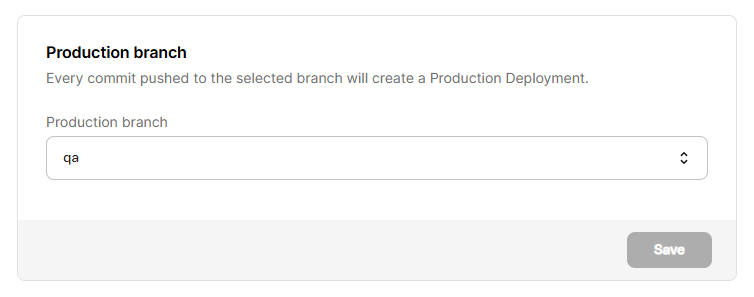
Configuring the production branch
To customize which branch generates production builds:
- In the Integrations tab of your FastStore WebOps dashboard, go to the Production branch section.
- Select the branch you want to use for production builds from the dropdown list.
- Click
Saveto apply the changes.
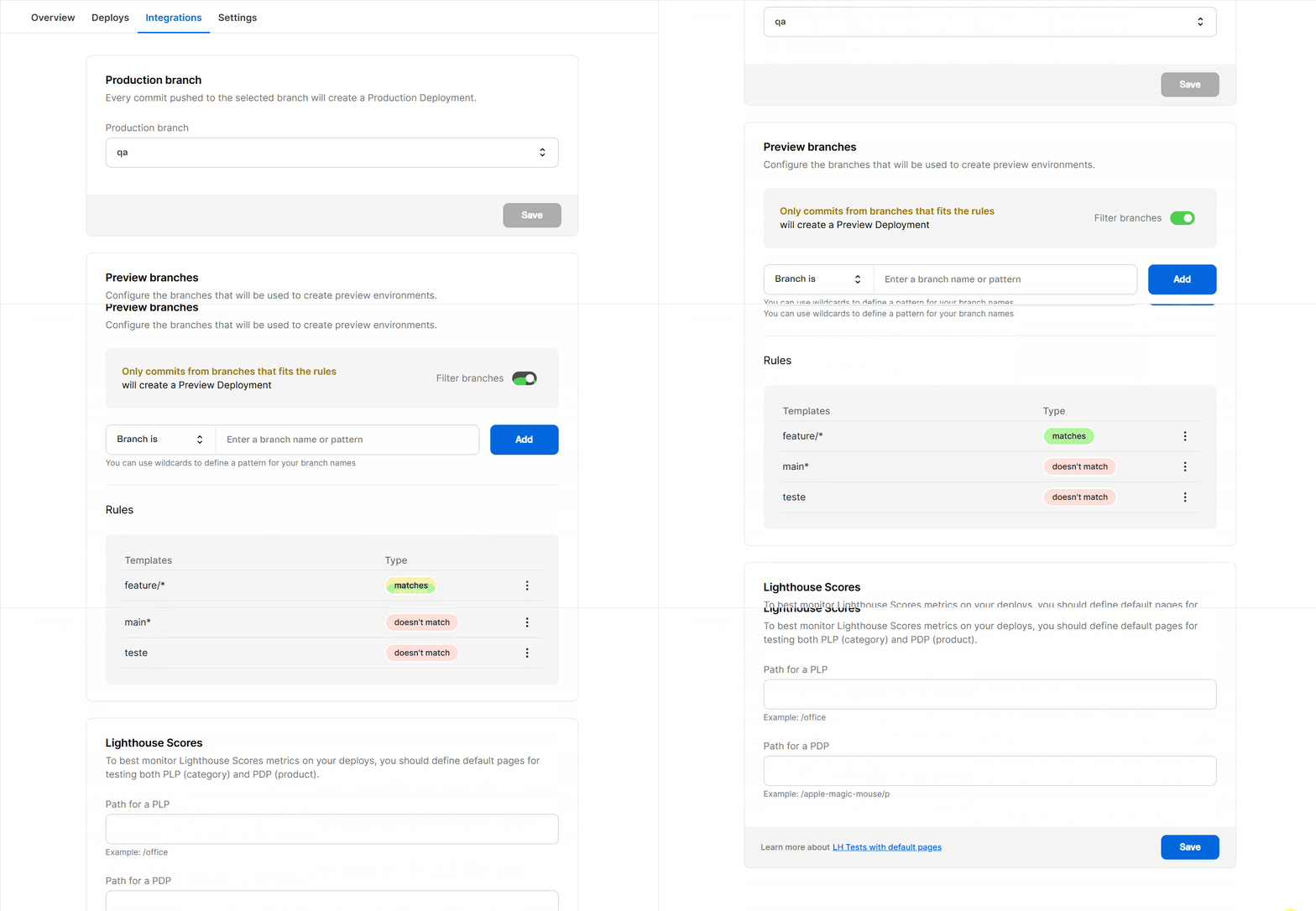
Configuring preview branch filters
Preview branch filters allow you to control which branches generate preview deployments. If no filters are configured, all branches (except the production branch) will generate preview deployments by default.
You can use include and exclude patterns to fine-tune the branches that create preview builds by following these steps:
-
In the Integrations tab of your FastStore WebOps dashboard, go to the Preview branch filters section.
-
Toggle the filter activation switch to enable branch filtering.
-
Add filter rules to include or exclude patterns:
-
Include patterns: Choose Branch is in the dropdown, then enter a branch name or pattern in the adjacent field. Only branches matching these patterns will generate previews.
-
Exclude patterns: Choose Branch is not in the dropdown, then enter a branch name or pattern in the adjacent field. Branches matching these patterns will not generate previews.
You can use wildcards to define patterns for branch names. -
-
Click
Addto add the filter rule.

Managing filter rules
In the Rules section, you can edit or delete a rule.
Editing a rule
- Go to the Rules section.
- Next to the rule you need to update, click
⋮and then clickEdit. - A modal will open where you can make your changes.
- Click
Updateto apply the changes.
Deleting a rule
- Go to the Rules section.
- Next to the rule you need to delete, click
⋮and then clickDelete. - A modal will open with the message
Are you sure you want to delete this rule?. - If you're sure, click
Deleteto remove the rule.