This app is currently under development and research by the VTEX Search and Personalization team. During this phase, it should only be installed on selected accounts participating in the closed beta phase of the Product Recommendations feature. For other accounts, installing this app will not have any effect. If you want to adopt this feature for your business, please contact our Support.
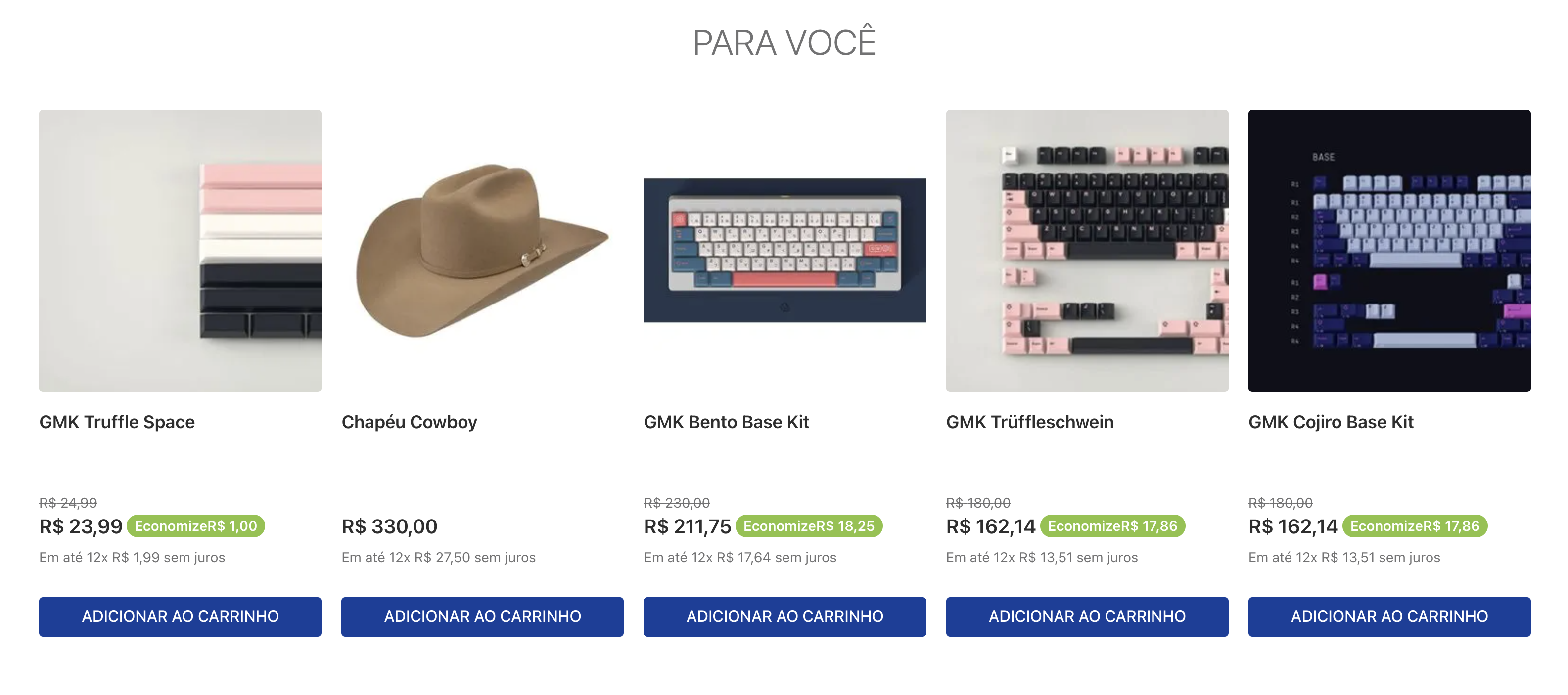
The Recommendation Shelf app is a store component that displays a collection of products using recommendation strategies.
Learn more about Product Recommendations.
Before you begin
Most recommendation strategies rely on user navigation data as input. Therefore, your store must be configured with our pixel for the recommendation-shelf to work properly. This configuration is managed by the VTEX team, so please wait for our confirmation before proceeding with the integration.
Installation
This app uses our store builder with the blocks architecture. To learn more about Store Builder, click here.
Follow these steps to use the Recommendation Shelf app in your store:
-
Add the app as a dependency in your store theme. In your
manifest.jsonfile, add the following to thedependenciessection:_10"dependencies": {_10"vtex.recommendation-shelf": "2.x"_10} -
Add the
recommendation-shelfblock into your app theme where you want the shelf to appear. -
Customize the behavior of the shelf block.
The example below shows the following configuration of the
recommendation-shelfblock and its supporting blocks:- It creates a
recommendation-shelf#similar-itemsblock that uses a list whose VRN containsrec-similar-v2(similar items) and sets the shelf title to "Similar items". - It defines a
list-context.product-list-staticblock, which includes theproduct-summary.shelfblock and a child slider layout. - It configures the
slider-layout#recommendation-sliderblock to control how many items are shown per page on desktop, tablet, and phone, and enables infinite scrolling.
Example:
_26"recommendation-shelf#similar-items": {_26"blocks": ["list-context.product-list-static"],_26"props": {_26"campaignVrn": "vrn:recommendations:biggy:rec-similar-v2:00318b68-cb1b-4d5a-8b0f-cc7fbcdd014b",_26"title": "Similar items",_26"hiddenPaths": ["/checkout/cart", "/produto/*"]_26}_26},_26"list-context.product-list-static": {_26"blocks": [_26"product-summary.shelf"_26],_26"children": [_26"slider-layout#recommendation-slider"_26]_26},_26"slider-layout#recommendation-slider": {_26"props": {_26"itemsPerPage": {_26"desktop": 5,_26"tablet": 3,_26"phone": 2_26},_26"infinite": true_26}_26} - It creates a
-
Customize the product summary (optional).
The Recommendation Shelf relies on the
slider-layoutandproduct-summary.shelfcomponents. You can further customize the shelf by creating a custom product summary, for example:_10"product-summary.shelf#custom": {_10"children": [_10"product-summary-name",_10"product-summary-description",_10"product-summary-image",_10"product-summary-price",_10"product-summary-sku-selector",_10"product-summary-buy-button"_10]_10}For more information, see the Product Summary API configuration.
Configuration
Configure the recommendation-shelf block in your theme app using the following props:
Props
Configure the recommendation-shelf block using the following properties:
| Prop name | Type | Description | Default value |
|---|---|---|---|
title | string | Shelf title displayed to users. | - |
campaignVrn | string | VRN for the recommendation campaign (the recommendation list ID from Admin. See Obtaining the VRN). | - |
displayTitle | boolean | Whether to show the shelf title (true) or hide it (false). | true |
itemsContext | array | Context source for items in the recommendation request (PDP or CART). See Recommended placement for which value to use where. | ['PDP'] |
hiddenPaths | array | URL paths where the shelf should not be displayed. Supports exact paths (e.g. /checkout/cart) and prefix wildcards with * (e.g. /produto/*). Useful when the shelf is placed in a global section (such as the footer) but should be hidden on specific pages. | [] |
displayLoading | boolean | Whether to display a loading placeholder while the shelf is loading (true) or render nothing until it is ready (false). | true |
loadingItemsPerPage | object | The number of loading placeholders to display per device type while loading. See the loadingItemsPerPage object section below. | { desktop: 5, tablet: 3, phone: 2 } |
loadingItemsPerPage object
| Prop name | Type | Description | Default value |
|---|---|---|---|
desktop | number | Number of loading placeholders shown on desktop devices. | 5 |
tablet | number | Number of loading placeholders shown on tablet devices. | 3 |
phone | number | Number of loading placeholders shown on phone devices. | 2 |
Obtaining the VRN
The campaignVrn prop takes the recommendation list ID from VTEX Admin. This is the identifier string shown after you create a recommendation list, also referred to as the shelf's VRN.
Once you create a list using the steps described in Creating recommendation lists, you can obtain the ID in the confirmation screen by clicking Copy ID.
If you need to copy the list ID of a list that already exists, follow these steps:
- Go to Storefront > Recommendations.
- Find the desired list in the shelf table.
- Click the ⋮ menu on the shelf row.
- Select Copy ID.
Recommendation strategies
The campaignVrn string must match vrn:recommendations:<account>:<campaign-type>:<campaign-id>. The campaign-type segment maps to an internal RecommendationType used when calling recommendations. Only v2 campaign types are currently valid; requests using a v1 type are rejected.
VRN campaign-type | Resolved RecommendationType | Requires product context | Description |
|---|---|---|---|
rec-cross-v2 | CROSS_SELL | Yes | Complementary products (often bought together). |
rec-similar-v2 | SIMILAR_ITEMS | Yes | Similar-item recommendations for the current product context. |
rec-visual-v2 | VISUAL_SIMILARITY | Yes | Visually similar products to the current product context. |
rec-next-v2 | NEXT_INTERACTION | Yes | Predicted next product the shopper is likely to interact with. |
rec-persona-v2 | PERSONALIZED | No | Personalized recommendations from shopper behavior. |
rec-last-v2 | LAST_SEEN | No | Recently viewed products for the shopper. |
rec-top-items-v2 | TOP_ITEMS | No | Popular / top-performing products in the store. |
rec-search-v2 | SEARCH_BASED | No | Search-driven recommendations. |
Campaigns marked Requires product context need at least one anchor product from itemsContext (the current PDP's product, an item in the cart, or both) to generate recommendations; the shelf skips the request and renders nothing when no anchor product is available. Campaigns that don't require context ignore itemsContext and can be placed anywhere.
Recommended placement
| Placement | How to add it | itemsContext |
|---|---|---|
| Product Detail Page (PDP) | Add the block as described in Installation. | ['PDP'] |
| Product Listing Pages (PLP) | Add the block as described in Installation. | Not applicable: use context-free campaigns (PERSONALIZED, LAST_SEEN, TOP_ITEMS, SEARCH_BASED). |
| Home and institutional pages | Add the block as described in Installation. | Not applicable: use context-free campaigns (PERSONALIZED, LAST_SEEN, TOP_ITEMS, SEARCH_BASED). |
| Mini-Cart | Nest the block inside minicart.v2. | ['CART'] |
| Cart page (Checkout) | Not a block: add a custom script to Checkout, since Checkout isn't part of the blocks architecture. | Not applicable; the script reads the order form directly. |
| Global section (e.g. footer) | Add the block outside a specific page context and use hiddenPaths to hide it on routes where it shouldn't render. | Depends on the campaign: context-free campaigns (PERSONALIZED, LAST_SEEN, TOP_ITEMS, SEARCH_BASED) work anywhere; context-required campaigns still need PDP and/or CART and only render where that context is available. |
Placing the shelf on the Mini-Cart
The recommendation-shelf block can also be rendered inside the Mini-Cart, surfacing recommendations right where shoppers are already reviewing their cart.
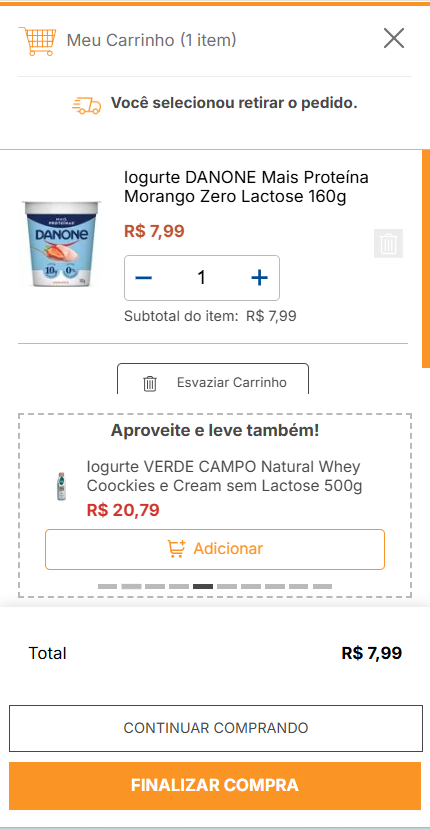
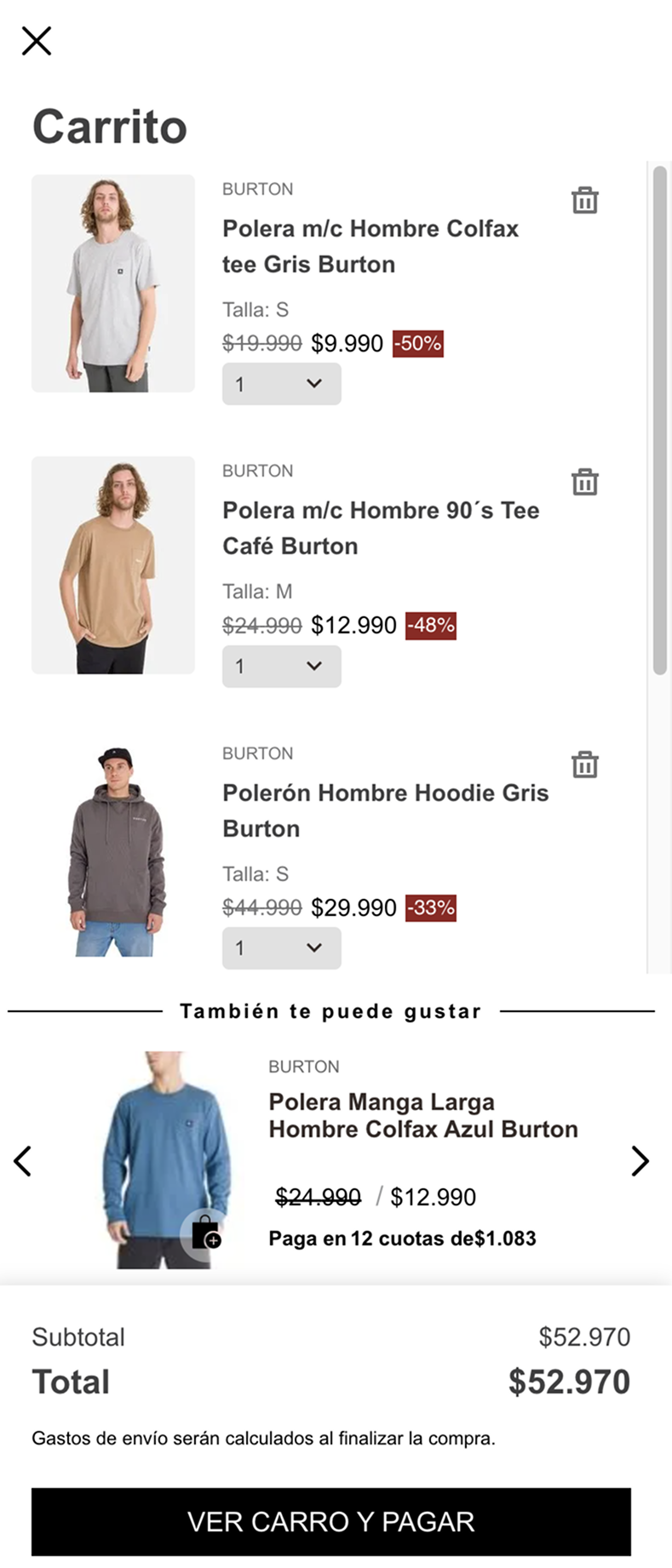
The example below shows the following configuration:
- It nests a
recommendation-shelf#minicartblock alongsideminicart-base-contentinside theminicart.v2block. - It sets
itemsContextto['CART'], so the shelf recommends products based on what's already in the cart. BecauseitemsContext: ['CART']reads cart items from the shopper's order form directly (not from the current page), the shelf receives the same cart-based recommendations whether it's rendered on the cart page or inside the Mini-Cart drawer. - It configures its supporting blocks (
list-context.product-list-static,product-summary.shelf,slider-layout) the same way described in Installation.
Example:
_14"minicart.v2": {_14 "children": [_14 "minicart-base-content",_14 "recommendation-shelf#minicart"_14 ]_14},_14"recommendation-shelf#minicart": {_14 "blocks": ["list-context.product-list-static"],_14 "props": {_14 "campaignVrn": "vrn:recommendations:<account>:rec-cross-v2:<campaign-id>",_14 "title": "You might also like",_14 "itemsContext": ["CART"]_14 }_14}
MiniShelf
The recommendation-mini-shelf block is a compact, collapsible version of the shelf, designed for small spaces such as the Mini-Cart on small devices. It frees space for the cart items without hiding the recommendation.
- Shows each product in a compact horizontal card (image, name, price, and a
+add-to-cart button). - Carousel with navigation arrows, with the next product partially visible at the edge. There is no autoplay, so products never change unless the shopper navigates.
- Starts expanded. Tapping the title bar collapses it into a thin bar (title and arrow) that stays above the Mini-Cart total, and tapping again expands it. The state is kept in memory only: it isn't persisted, so it resets whenever the component is mounted again.
- It doesn't change the Mini-Cart structure, and
recommendation-shelfkeeps working as before.
It accepts the same props as recommendation-shelf, except that loadingItemsPerPage defaults to { desktop: 2, tablet: 2, phone: 1 }.
The product summary is a direct slot of the block, in the same way as the gallery block of vtex.search-result: the block receives a product-summary block in its blocks and the carousel (slider-layout) in its children. Like recommendation-shelf, each suffixed instance declares them itself, using the default blocks shipped by this app:
_15"minicart.v2": {_15 "children": [_15 "minicart-base-content",_15 "recommendation-mini-shelf#minicart"_15 ]_15},_15"recommendation-mini-shelf#minicart": {_15 "blocks": ["product-summary.shelf#rec-mini-shelf"],_15 "children": ["slider-layout#rec-mini-shelf"],_15 "props": {_15 "campaignVrn": "vrn:recommendations:<account>:rec-cross-v2:<campaign-id>",_15 "title": "You might also like",_15 "itemsContext": ["CART"]_15 }_15}
An unsuffixed recommendation-mini-shelf block already comes with these defaults.
Customizing the MiniShelf
To change the product summary, point the blocks of your recommendation-mini-shelf block to your own product-summary.shelf block. No other block needs to be redefined:
_16"recommendation-mini-shelf#minicart": {_16 "blocks": ["product-summary.shelf#my-mini-summary"],_16 "children": ["slider-layout#rec-mini-shelf"],_16 "props": {_16 "campaignVrn": "vrn:recommendations:<account>:rec-cross-v2:<campaign-id>"_16 }_16},_16"product-summary.shelf#my-mini-summary": {_16 "children": [_16 "product-summary-image",_16 "product-summary-name",_16 "product-list-price#summary",_16 "product-selling-price#summary",_16 "add-to-cart-button"_16 ]_16}
The default blocks shipped by this app, which you can reuse or redefine in your theme:
| Block | Purpose |
|---|---|
product-summary.shelf#rec-mini-shelf | The default compact product summary (image, name, price and + button). Redefine its children to change the default card. |
slider-layout#rec-mini-shelf | The carousel: one card per page with only the image of the next one showing, no autoplay. |
CSS handles
| CSS handle |
|---|
recMiniShelfContainer |
recMiniShelfContainerLoading |
recMiniShelfCollapsed |
recMiniShelfHeader |
recMiniShelfTitle |
recMiniShelfToggle |
recMiniShelfToggleIcon |
recMiniShelfContent |
recMiniShelfSkeletonPiece |
recMiniShelfSkeletonTitle |
recMiniShelfSkeletonTitlePiece |
The carousel and the add-to-cart button use the rec-mini-shelf block class (for example, .sliderLayoutContainer--rec-mini-shelf).
Placing the shelf on the Cart page (Checkout)
Checkout isn't part of the Store Builder blocks architecture, so recommendation-shelf can't be nested there like it can on the Mini-Cart or a themed page. Instead, use examples/cart-shelf.js, a vanilla JavaScript script that fetches recommendations directly from the Recommendations API and renders them after the checkout container.
To use it:
- Copy the contents of
examples/cart-shelf.js. - Edit the
SHELF_CONFIGobject at the top of the script with youraccount,campaignVrn, and optionaltitle,displayTitle, anditemsPerPagevalues. - Add the edited script to your Checkout custom scripts.
Troubleshooting
Check if others have encountered similar issues here. Feel free to open issues or contribute with pull requests.
