Enabling product purchase from search with QuickOrder
This feature allows customers to add products directly to their cart from search results, simplifying the purchase process.
4 min read
QuickOrder is a feature that allows customers to add products directly to their cart from search results, simplifying the purchase process. It reduces the number of steps required to complete a purchase, making it especially useful for B2B stores that involve bulk and frequent orders.
QuickOrder can help in the following scenarios:
- Minimizing clicks to add items to the cart.
- Simplifying the process for bulk and frequent orders.
- Improving the usability of search results.
- Handling complex product variations.
Before you begin
Before implementing QuickOrder, make sure you have:
- A FastStore project onboarded through WebOps.
- VTEX Intelligent Search installed and integrated with your store.
- An understanding of Section Override to follow along the instructions.
Use case: B2B store
In B2B stores, buyers often need to add large quantities of products, including multiple variants, to the cart. With QuickOrder, the
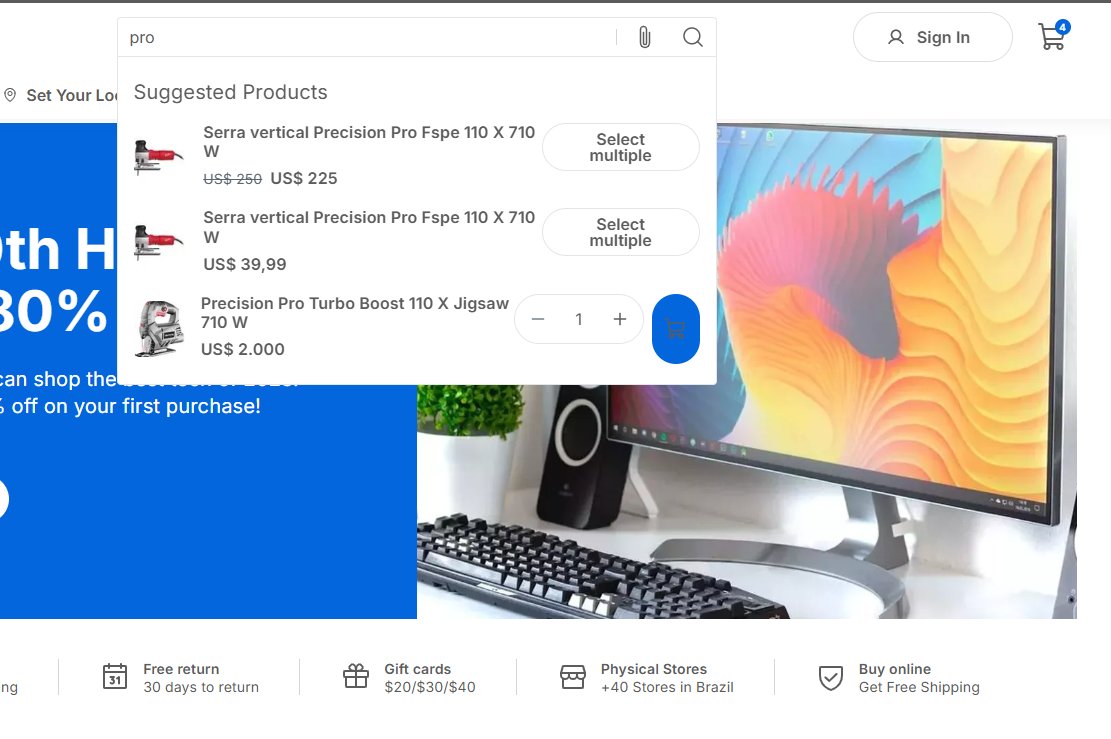
SearchProductItem component displays available stock and quantity selectors directly in search results, streamlining the purchasing process for repeat and bulk orders.
QuickOrder in a B2B context supports two interaction patterns:- Simple quantity input: The buyer sets the desired quantity next to each search result and adds it to the cart directly.
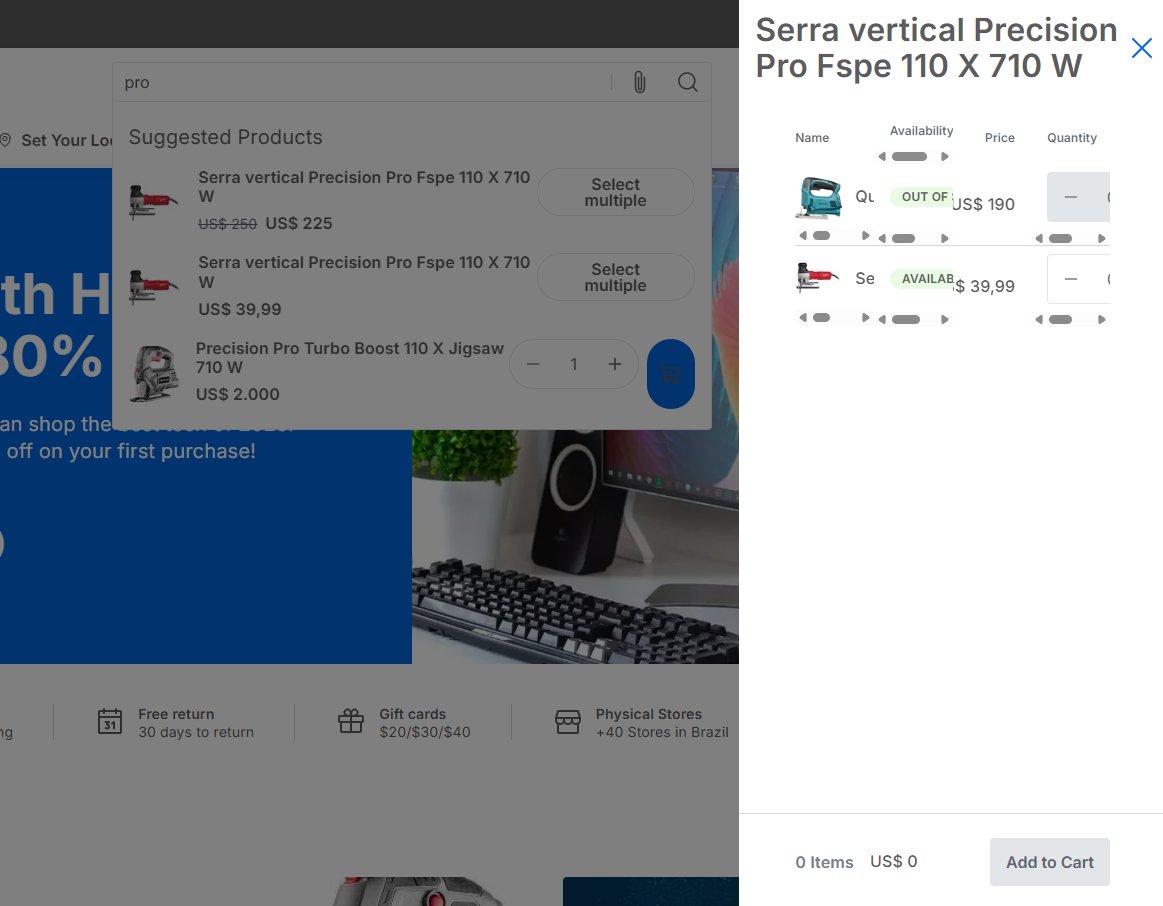
- SKU Matrix (bulk variant selection): For products with multiple variants (example: sizes, colors), clicking the add-to-cart button opens a sidebar panel where the buyer can select combinations and quantities across all SKUs at once, then add everything to the cart in a single action.
Instructions
Step 1 - Override the SearchProductItem component
-
In your FastStore project, navigate to
src/components/overridesand create aSearchProductItem.tsxfile. -
Add the following code to the file:_25import { SectionOverride } from "@faststore/core";_25import { SearchProductItemContent_unstable } from "@faststore/core/experimental";_25_25const SECTION = "SearchInput" as const;_25_25const override: SectionOverride = {_25section: SECTION,_25components: {_25SearchProductItemContent: {_25Component: (props) => (_25<SearchProductItemContent_unstable_25{...props}_25quickOrderSettings={{_25quantitySelector: {_25maxQuantity: 999,_25},_25outOfStockLabel: "Out of stock",_25}}_25/>_25),_25},_25},_25};_25_25export { override };The code above overrides the
SearchProductItemContentcomponent to enable QuickOrder with the following settings:maxQuantity: Sets the upper limit for the quantity selector. Adjust this value to meet the requirements of your store.outOfStockLabel: Defines the label displayed when a product is out of stock.
-
Open the terminal and run
yarn devto sync the changes locally. -
Access the local development URL of your store to check if the search results now display a quantity selector and an add-to-cart button next to each product.
Step 2 - Enable the SKU Matrix sidebar for bulk variant selection
For products with multiple SKUs, you can extend QuickOrder with the SKU Matrix sidebar, which lets buyers choose variants and quantities in a single interaction.
The SKU Matrix sidebar (__experimentalSKUMatrixSidebar) is an experimental feature. Its API and behavior may change in future releases.
-
In
src/components/overrides, create aNavbar.tsxfile and add the following:_14import { SectionOverride } from "@faststore/core";_14_14const SECTION = "Navbar" as const;_14_14const override: SectionOverride = {_14section: SECTION,_14components: {_14__experimentalSKUMatrixSidebar: {_14Component: () => null,_14},_14},_14};_14_14export { override };The__experimentalSKUMatrixSidebaroverride registers the SKU selection sidebar in the Navbar. This allows buyers to view and select all available SKU combinations for a product from a drawer panel without leaving the search results page. -
Update your
SearchProductItem.tsxoverride to enable the SKU Matrix:_28import { SectionOverride } from "@faststore/core";_28import { SearchProductItemContent_unstable } from "@faststore/core/experimental";_28_28const SECTION = "SearchInput" as const;_28_28const override: SectionOverride = {_28section: SECTION,_28components: {_28SearchProductItemContent: {_28Component: (props) => (_28<SearchProductItemContent_unstable_28{...props}_28quickOrderSettings={{_28skuMatrix: {_28enabled: true,_28},_28quantitySelector: {_28maxQuantity: 999,_28},_28outOfStockLabel: "Out of stock",_28}}_28/>_28),_28},_28},_28};_28_28export { override };WithskuMatrix.enabledset totrue, the add-to-cart button in search results opens the SKU Matrix sidebar for products with multiple variants, allowing buyers to pick variant combinations and quantities before adding everything to the cart. -
Run
yarn devto apply the changes locally. -
Do a search and click the add-to-cart button on a product with multiple SKUs. The SKU Matrix panel should open.
Step 3 - Promote your changes
After testing locally, follow these steps to deploy the changes to production:
- In your local store code, create a new branch with the changes you made.
- Push the changes to the new branch and publish it.
- Open a pull request in the store repository.
- If the checks and reviews are all good, merge with the
mainbranch.
For more details on customizing components in FastStore, see Section Override. For information about the Search components used in QuickOrder, see SearchProducts.