FastStore: Improved SEO and data reliability with EAN-based GTIN in product structured data
FastStore now uses European Article Number (EAN) values to populate the GTIN field in product structured data, improving SEO compliance and product discoverability in search engines.
FastStore has improved how the Global Trade Item Number (GTIN) field is populated in product structured data. This update ensures that product pages display standardized product identifiers, helping search engines better index your products and potentially qualify for rich results in Google Search.
What has changed?
Previously, the GTIN field in product structured data was populated using the product's Reference Code from the Catalog. With this update, FastStore now prioritizes the European Article Number (EAN) for the GTIN field whenever an EAN value is available. If no EAN exists, the system falls back to using the Reference Code.
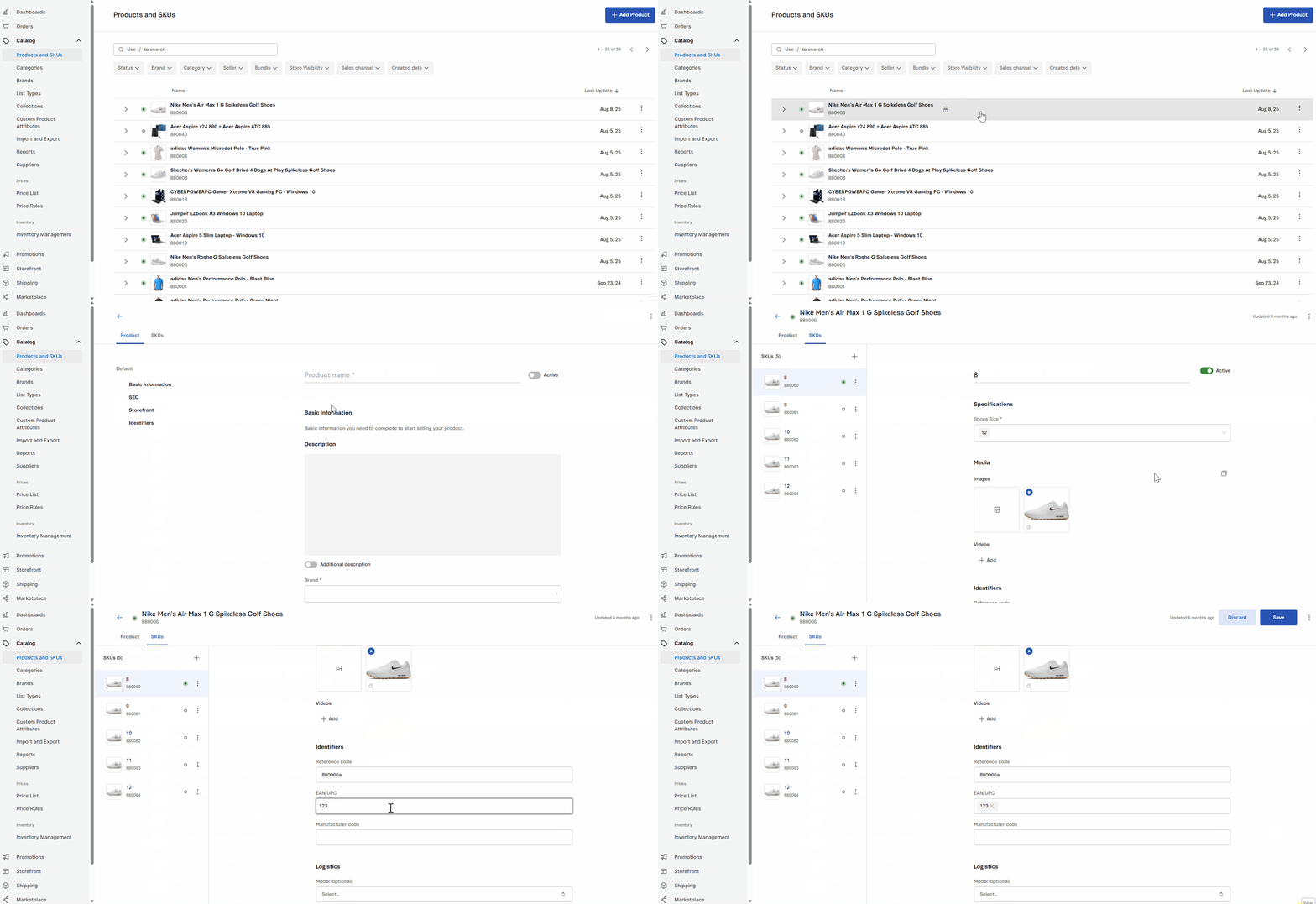
This change affects the JSON-LD structured data on the product pages, which search engines use to understand and display product information.
Why did we make this change?
Using EAN values for GTIN aligns your product data with search engine best practices and industry standards. This enables your products to qualify for Google's rich results, which display enhanced product information directly in search results and helps search engines accurately index and match your products across multiple sources, improving organic visibility and discoverability.
What needs to be done?
This update is automatically applied to all FastStore projects. No action is required for standard implementations.
If your store uses custom integrations to handle structured data, review your implementation to ensure EAN values are correctly populated for SKUs where GTIN is critical.
To confirm that the GTIN field is using EAN values correctly, follow these steps:
- Open a product page in your store.
- Right-click on the page and select Inspect (or press
F12). - In the Elements tab, press
Ctrl+F(orCmd+Fon Mac) and search for"gtin". - Verify the value matches the EAN configured in your Catalog.
The structured data should look like this:
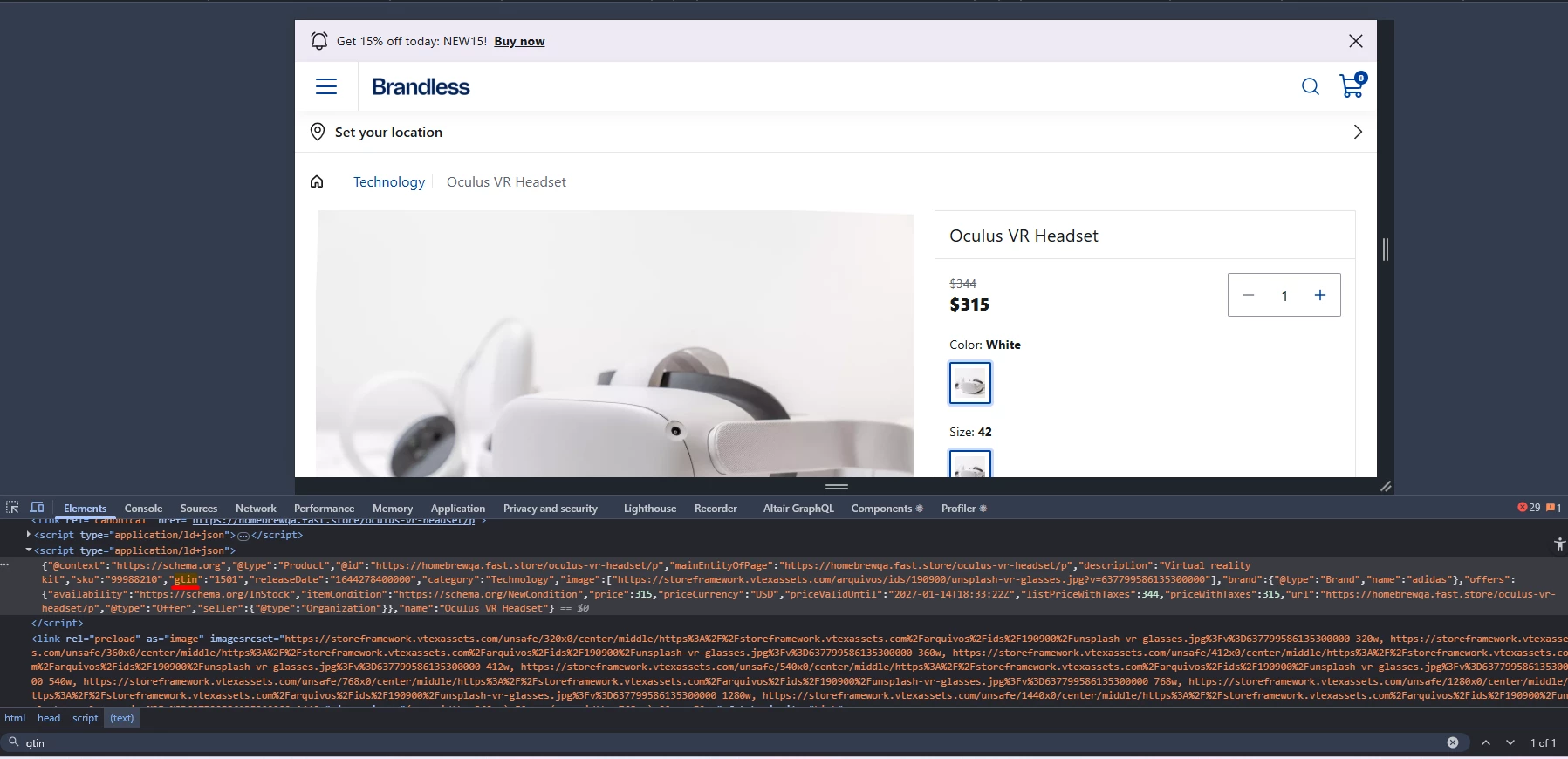
Products without EAN will fall back to using the Reference Code. You can create an EAN for a SKU by following the Create SKU EAN API reference.