Store Locator
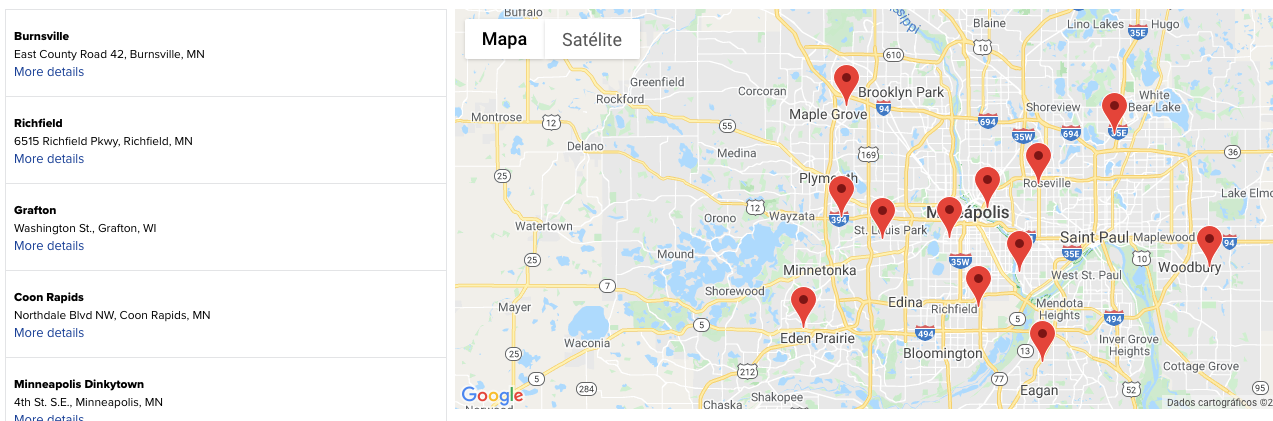
The Store Locator app fetches the Pickup point data in order to display address location for retail stores.
Configuration
- Install the Store Locator app in your VTEX account by running
vtex install vtex.store-locatorin your terminal. - In your account's admin page, select Inventory & Shipping section and then access Settings.
- Type in the Google Geolocation API key and save your changes.
- Open your Store Theme app directory in your code editor.
- Add the Store Locator app as a
peerDependencyin themanifest.jsonfile:
_10 "peerDependencies": {_10+ "vtex.store-locator": "0.x"_10 }
Once installed, the app will generate a new route called /stores for your store, listing the retail stores registered in the Pickup Points section (under the Inventory & Shipping module).
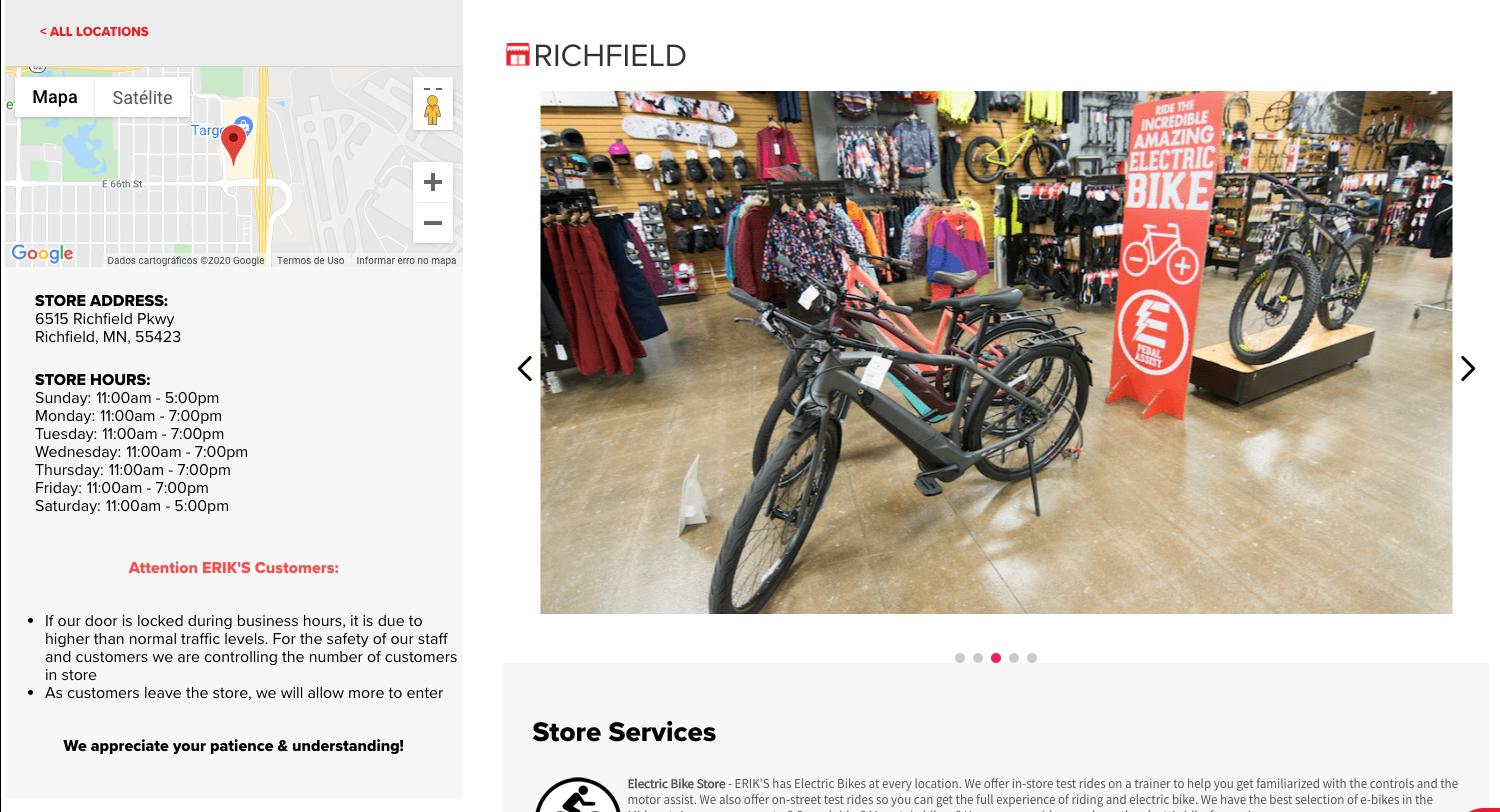
The new page already contains a default template with all blocks exported by the Store Locator app, meaning the /stores page is ready to be rendered and no further actions are required. However, you can customize the new page overwriting the template by creating a brand new one. To do so, check the Advanced configuration section below.
This app will also add a new entry to your store's
/sitemap.xmlfile so that all your pickup points are available to search engines - make sure you already have thevtex.store-sitemap@2.xapp installed in your VTEX account!
Advanced configuration
In order to define the Store Locator custom page UI, you must use the blocks exported by the vtex.store-locator app. Namely, they are:
| Block name | Description |
|---|---|
store-list | Renders a list of retail stores and a map with all their locations marked. |
store-group | Provides the Pickup Point data to other blocks exported by the app, such as the ones listed below. |
store-name | Renders the store name. |
store-back-link | Renders a link to return to the previous page. |
store-map | Renders a map with the retail store's location. |
store-address | Renders the store's address. |
store-hours | Renders the store's opening hours. This information comes by default from the Pickup Points configuration, but you can also define manually through the Store's theme |
store-instructions | Renders the desired instructions to access the retail store. |
- Open your Store Theme app directory in your code editor.
- In the
/store/blocksfolder of your Store Theme app, create a new file calledstorelocator.json. - Create a new store template in it called
store.storelocator. In its blocks array, paste the default implementation stated below:
_122{_122 "store.storelocator": {_122 "blocks": ["flex-layout.row#title", "flex-layout.row#container"]_122 },_122 "flex-layout.row#title": {_122 "children": ["flex-layout.col#title"]_122 },_122 "flex-layout.row#container": {_122 "children": ["store-list"]_122 },_122 "flex-layout.col#title": {_122 "children": ["rich-text#title"],_122 "props": {_122 "blockClass": "title",_122 "preventVerticalStretch": true_122 }_122 },_122 "rich-text#title": {_122 "props": {_122 "text": "## Store Locator"_122 }_122 },_122 "store.storedetail": {_122 "blocks": ["flex-layout.row#titleStore", "store-group"]_122 },_122 "store-group": {_122 "children": ["flex-layout.row#containerStore"],_122 "props": {_122 "title": "{storeName} Store"_122 }_122 },_122 "flex-layout.row#titleStore": {_122 "children": ["flex-layout.col#titleStore"]_122 },_122 "flex-layout.row#containerStore": {_122 "children": ["flex-layout.col#detail", "flex-layout.col#store"]_122 },_122 "flex-layout.col#titleStore": {_122 "children": ["rich-text#titleStore"],_122 "props": {_122 "blockClass": "title",_122 "preventVerticalStretch": true_122 }_122 },_122 "rich-text#titleStore": {_122 "props": {_122 "text": "## Store Detail"_122 }_122 },_122 "flex-layout.col#detail": {_122 "children": [_122 "store-back-link",_122 "store-map",_122 "store-address",_122 "store-hours",_122 "store-instructions"_122 ],_122 "props": {_122 "width": "30%",_122 "preventVerticalStretch": true_122 }_122 },_122 "flex-layout.col#store": {_122 "children": ["store-name"],_122 "props": {_122 "width": "70%"_122 }_122 },_122 "store-hours": {_122 "props": {_122 "label": "Business hours:",_122 "format": "12h",_122 "businessHours": [_122 {_122 "dayOfWeek": "Sunday",_122 "openingTime": "11:00am",_122 "closingTime": "5:00pm"_122 },_122 {_122 "dayOfWeek": "Monday",_122 "openingTime": "11:00am",_122 "closingTime": "6:00pm"_122 },_122 {_122 "dayOfWeek": "Tuesday",_122 "openingTime": "11:00am",_122 "closingTime": "6:00pm"_122 },_122 {_122 "dayOfWeek": "Wednesday",_122 "openingTime": "11:00am",_122 "closingTime": "6:00pm"_122 },_122 {_122 "dayOfWeek": "Thursday",_122 "openingTime": "11:00am",_122 "closingTime": "6:00pm"_122 },_122 {_122 "dayOfWeek": "Friday",_122 "openingTime": "11:00am",_122 "closingTime": "6:00pm"_122 },_122 {_122 "dayOfWeek": "Saturday",_122 "openingTime": "11:00am",_122 "closingTime": "5:00pm"_122 }_122 ]_122 }_122 },_122 "store-back-link": {_122 "props": {_122 "label": "Back to all stores"_122 }_122 },_122 "store-instructions": {_122 "props": {_122 "label": ""_122 }_122 }_122}
- Configure each one of the blocks previously declared as you wish using their props (check out the following tables).
store-list
| Prop name | Type | Description | Default value |
|---|---|---|---|
filterByTag | string | Filter fetched Pickup Points by this tag. | undefined |
icon | string | Icon used to display store location in map. Input icon URL (svg or png). | Google's default |
iconWidth | number | Icon width in pixels (px). | Image default width |
iconHeight | number | Icon height in pixels (px). | Image default height |
zoom | number | Map zoom as a number. | 10 |
lat | number | Latitude coordinate. | undefined |
long | number | Longitude coordinate. | undefined |
sortBy | string | Property (name or distance) used to sort the stores list. | distance |
Use the
latandlongprops to display Pickup Points configured in seller accounts. If these props are not configured and you do not have any pick up points set up in your main account, the app will display no stores.
The
filterByTagprop cannot be used along withlatandlong. If you set a value forfilterByTag, thelatandlongprops will be ignored.
store-group props
| Prop name | Type | Description | Default value |
|---|---|---|---|
title | string | Title used in the page's HTML title tag and Structured Data for SEO purposes. The {storeName}, {storeCity}, and / or {storeState} variables can be used in the title text. | {storeName} |
description | string | Description text used in the page's HTML description meta tag and Structured Data for SEO purposes. The {storeName}, {storeCity}, and / or {storeState} variables can be used in the description text. | empty string |
imageSelector | string | CSS Selector to select the images included in the page's Structured Data. | empty string |
instructionsAsPhone | boolean | To provide a unique phone number for each store, a phone number can be entered in the Instructions field in the Pickup Points section. The store-instructions will display a phone number and it will be included in the page's Structured Data. | false |
⚠️ Both imageSelector and instructionsAsPhone must be declared with valid values in order to provide Structured Data for SEO purposes.
store-name props
| Prop name | Type | Description | Default value |
|---|---|---|---|
text | string | Text to be displayed as store name. {storeName}, {storeCity}, and / or {storeState} values can be used to generate the store name. | undefined |
tag | string | HTML element to wrap the store-name block when rendered on the UI. | div |
store-back-link props
| Prop name | Type | Description | Default value |
|---|---|---|---|
label | string | Text displayed by store-back-link block when rendered on the UI. | Back to all stores |
store-map props
| Prop name | Type | Description | Default value |
|---|---|---|---|
width | string | Map width. | 100% |
height | string | Map height. | 200px |
zoom | integer | Map zoom as a number | 14 |
icon | string | Icon used to display store location in map. Input icon URL (svg or png). | undefined |
store-address props
| Prop name | Type | Description | Default value |
|---|---|---|---|
label | string | Label for the store-address block when rendered on the UI. | Store address |
store-hours props
| Prop name | Type | Description | Default value. |
|---|---|---|---|
label | string | Label for the store-hours block when rendered on the UI. | Store hours |
format | enum | Hour format. Possible values are 12h and 24h. | 24h |
businessHours | array of object | format {"dayOfWeek": "Sunday","openingTime": "11:00am","closingTime": "5:00pm"} | undefined |
store-description props
| Prop name | Type | Description | Default value |
|---|---|---|---|
text | string | Text to be displayed on the store page. Use {storeName}, {storeCity}, or {storeState} within your text to display that store's specific value. | undefined |
store-instructions props
| Prop name | Type | Description | Default value |
|---|---|---|---|
label | string | Label for the store-instructions block when rendered on the UI. | Information |
Customization
In order to apply CSS customizations in this and other blocks, follow the instructions given in the recipe on Using CSS Handles for store customization.
| CSS Handles |
|---|
addressContainer |
addressLabel |
addressListFirstItem |
addressListItem |
addressListLink |
addressList |
addressStoreAddress |
addressStoreName |
addressStoreAddressGroupA |
addressStoreAddressNumber |
addressStoreAddressStreet |
backlinkContainer |
backlink |
businessHours |
container |
descriptionContainer |
descriptionText |
dayOfWeek |
divider |
hourRow |
hoursContainer |
hoursLabel |
instructionsContainer |
instructionsLabel |
instructionsText |
listingMapContainer |
loadAll |
markerInfoAddress |
markerInfoLink |
markerInfoStoreName |
markerInfo |
noResults |
storeName |
storesListCol |
storesList |
storesMapCol |